Upgrade Instructions
Keep your transform.engine up to date with the latest improvements, features, and bug fixes! Use the latest transform.client to update your engine.
To download the latest client, navigate to the Software Downloads page.
Schedule upgrades during planned maintenance windows rather than immediately before a show!
Before You Begin
If you are running an old edition of transform.client, and your computer is online, you will see the following warning when you start the software:
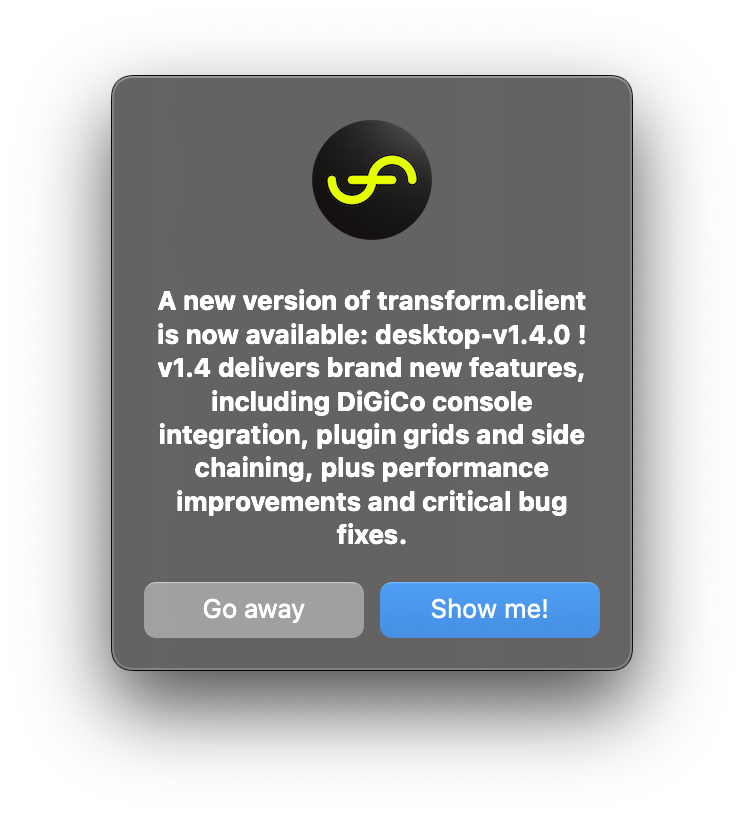
Download the latest client before continuing.
- Ensure your showfile is saved and backed up (always good to do!)
- The transform.engine must remain powered on during the upgrade
- The transform.client updater comes with compatible transform.engine software bundled so you can upgrade the transform.engine offline
Quick Steps
| Step | Task | Notes |
|---|---|---|
| 1 | Backup current showfile. | Optional but recommended. |
| 2 | Download the latest transform.client installer. | This can be obtained from the Software Downloads. |
| 3 | Run the installer. | |
| 4 | Run the updated client, and connect to your transform.engine. | |
| 5 | The transform.engine will be feeling left out! Navigate to the system tab to update. | See detailed steps below... |
| 6 | Walk away, get your tech to make you a cup of tea. | |
| 7 | Reconnect to your engine, and you are good to go! | Test all the shiny new features. |
Step-by-Step Upgrade Instructions
- Download the latest update package
Navigate to the Software Downloads page and download the latest version. Select the relevant transform.client bundle for your operating system:
| OS Type | Architecture | Description |
|---|---|---|
| Windows | x86-64 (64-bit) | Standard installer for modern 64-bit Windows 10/11 systems. |
| macOS (ARM) | ARM64 (Apple Silicon) | For Macs with Apple Silicon chips (M1, M2, M3 and newer). |
| macOS (x86-64) | Intel (x86-64) | For older Intel-based Macs (pre-2020 devices without Apple Silicon). |
This is the only step that requires internet access. You can complete the rest of the upgrade offline once you’ve downloaded the correct version.
-
Close down transform.client
Make sure transform.client is not running while updating. -
Run the installer
You will obtain a .zip file containing an installer for the updated transform.client. Extract and run the installer. -
Follow on-screen prompts
The update tool will guide you through transform.client installation. -
Run the new transform.client
The application will now show its installed version, now connect to your transform.engine. You should see a discrepancy between the version numbers like so: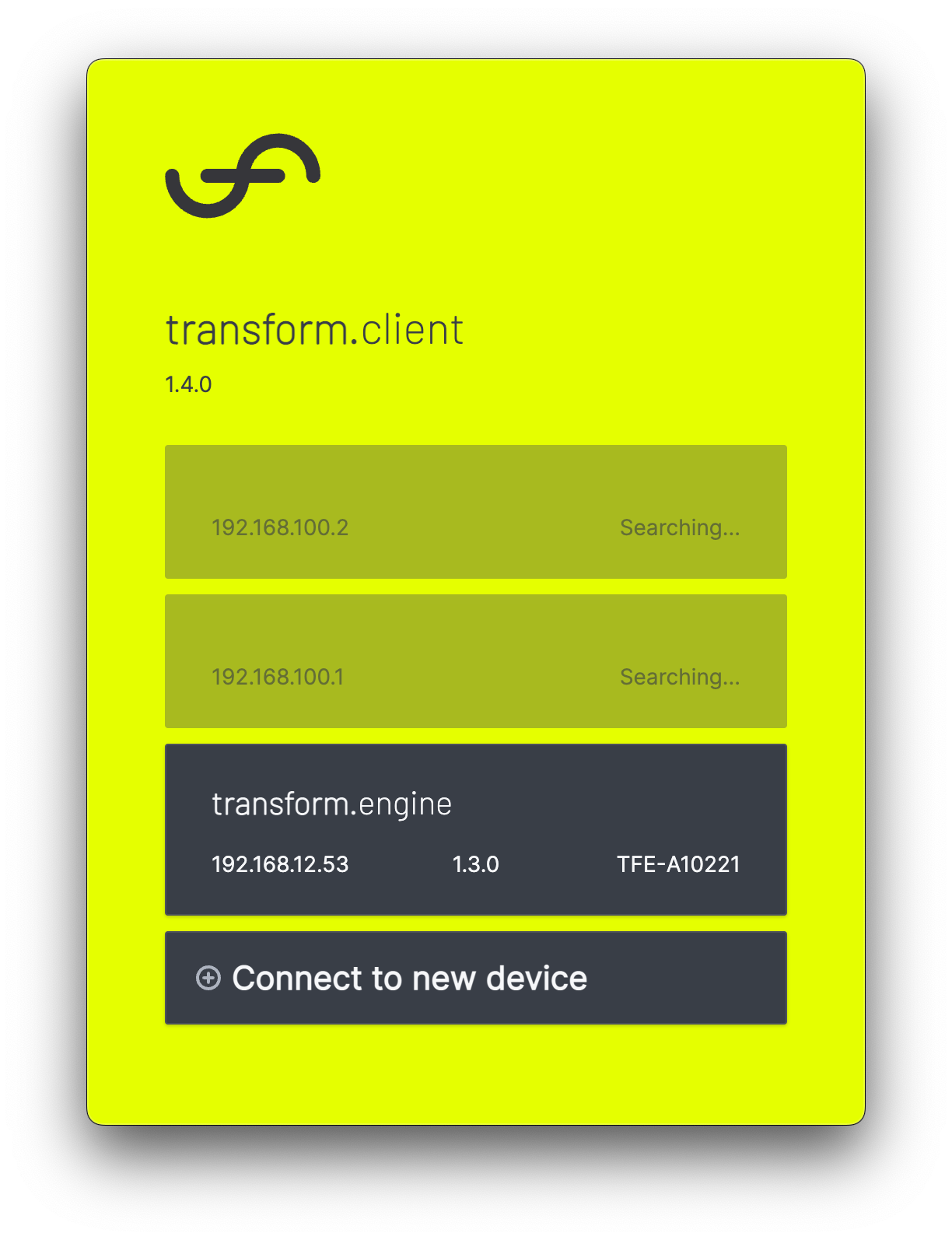
Now, let's get the transform.engine up to speed.
-
Navigate to the System tab
Once you have connected to your transform.engine, you will see the System tab in the top right: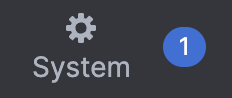
-
Navigate to the software section
On the left-hand side of your screen, you will see the settings menu. Select the Software section: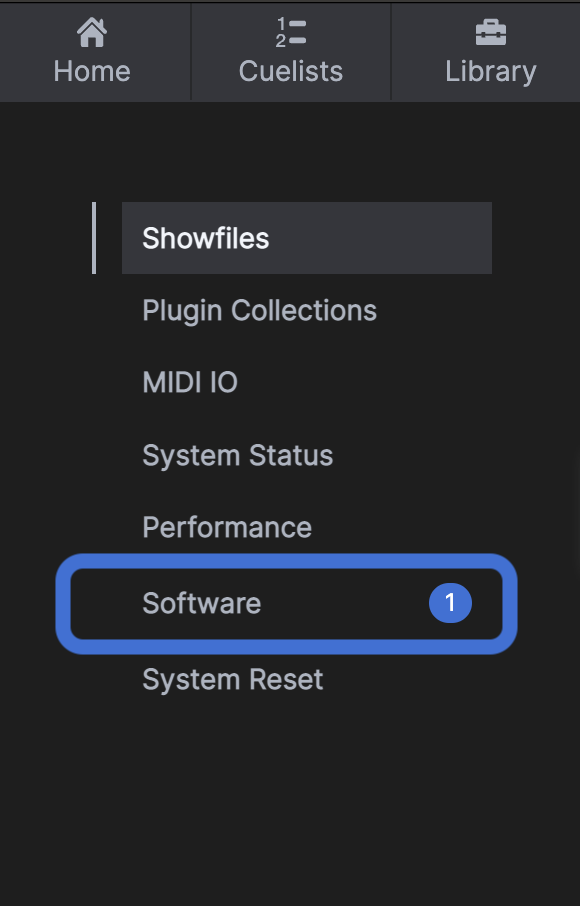
-
Begin the update
Within the transform.engine software version number box, an Upgrade button will have appeared. Click it to begin the update: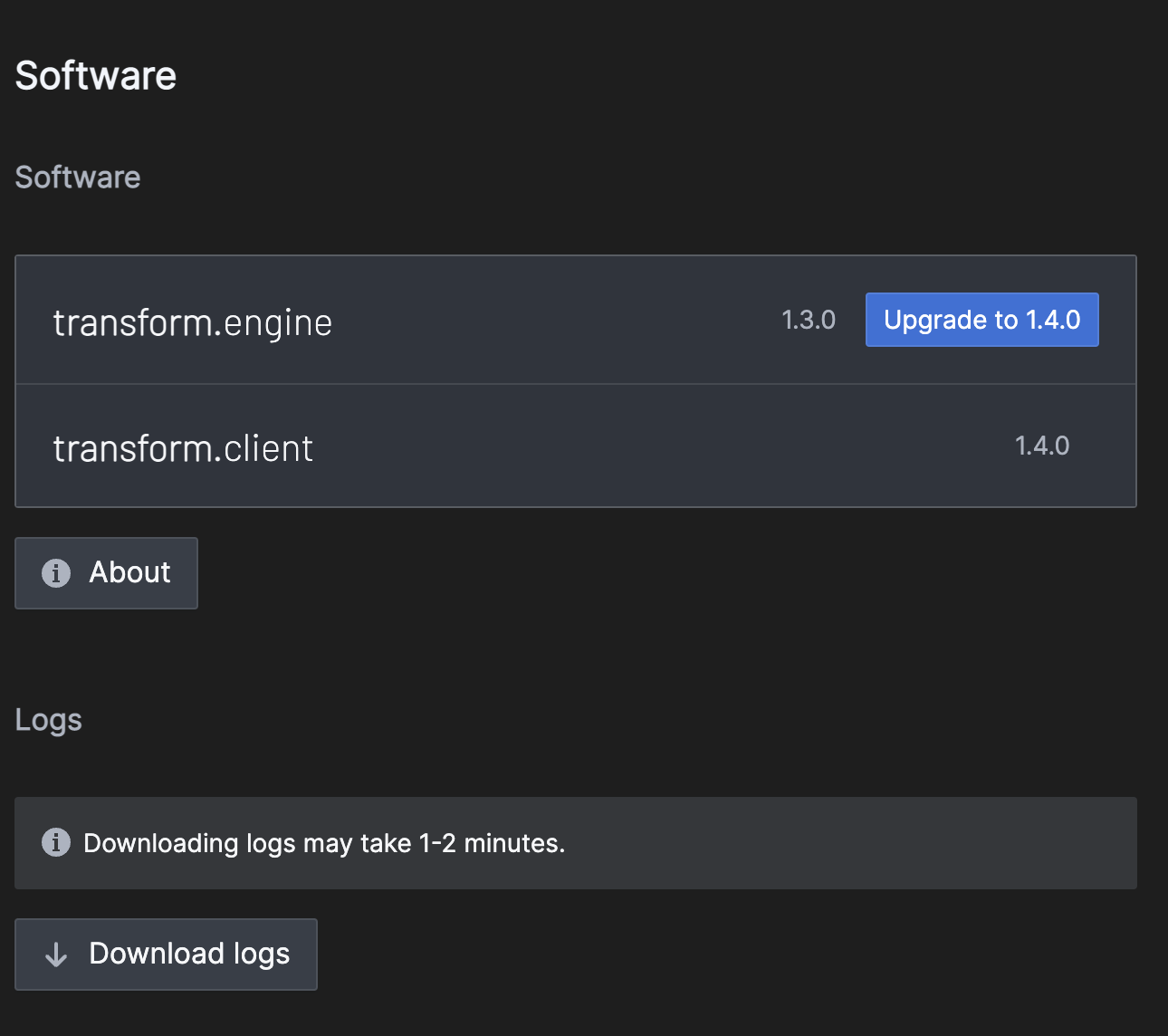
-
Wait for stuff to happen...
This step usually takes a couple of minutes, so kick back and relax while your transform.engine studies its newest feature set! It should look a little something like this: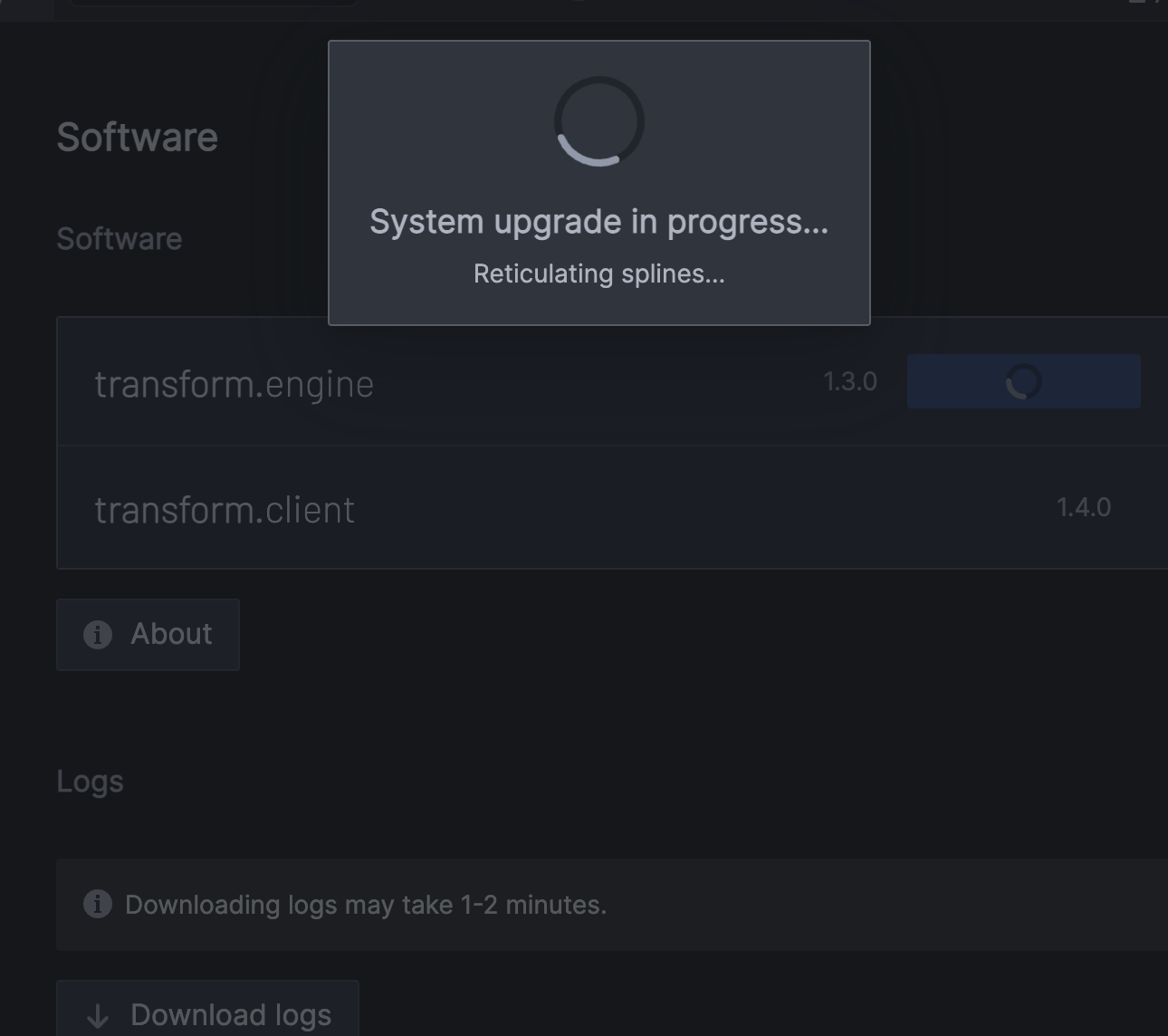
-
Success!
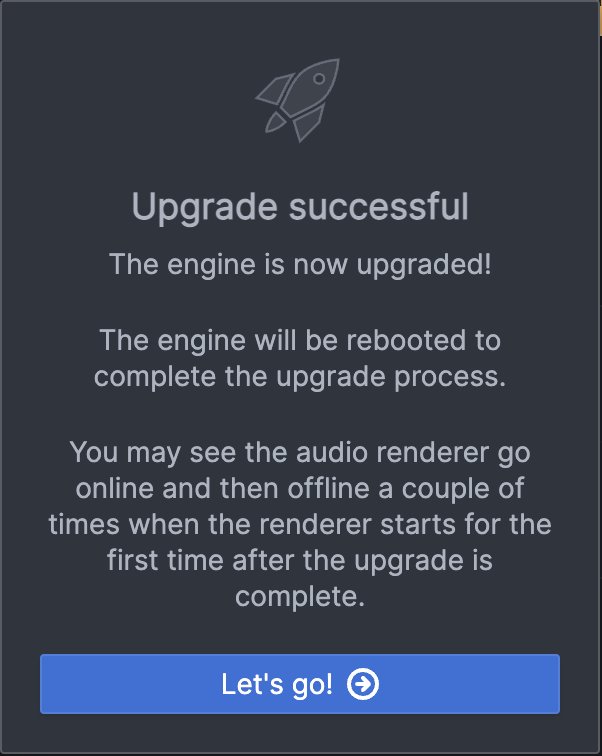
Following this, the application will return you to the connection page. Wait for the engine to complete the reboot, and then select it to connect and enjoy the exciting new features.
Licensing Considerations
Since your plugins were initially scanned by the previous version of transform.engine, after some upgrades you may need to rescan your plugins to ensure full compatibility with newly-added features.
If a rescan is needed, in the library tab, you will see the following warning:

To resolve this:
- Select Rescan User Plugins to rescan all manually installed plugins.
- Select Rescan Plugin Collections to reprocess any plugin collections such as the transform.suite and ensure they're up to date with the latest version of the transform.engine.
Rescanning plugins is non-destructive and helps avoid potential compatibility issues or feature limitations with newer builds.
Troubleshooting
- If the system doesn’t reboot properly, you will be prompted to repeat the installation steps.
If you encounter issues during the upgrade:
- Visit: Fourier Audio Support
- Contact: support@fourieraudio.com
Stay current! Unlock new capabilities with every upgrade.