Plugin Chains
With patent-pending technology, the transform.engine not only reboots a plugin if it crashes but it also leaves all other plugin chains unaffected.
Click add and a plugin chain will appear, with audio passing from top to bottom.
- Name - Definable text and colour
- Input - Select Audio input
- Plus - Add plugins
- Delay Compensation - Auto-align your outputs, more info here.
- Output - Select Audio output
- DSP Load - Shows the processing load of a chain, and its core allocation.
There are various different states of your plugins:
-
 Healthy, happy and ready to go. Plugin is processing audio.
 -
 Lightning bolt- your plugin/chain is not ready yet, but it is spinning up and will be ready shortly.
 -
 Bypass- Your plugin is bypassed, exactly what it says on the tin. The audio is going around the outside of the plugin, the DSP is still running, but it's a great way to A/B the effects of your plugin from the dry signal.
 -
 Smite- this plugin is smitten: it is doing nothing. The plugin is shut down, no DSP, just an empty placeholder, gone forever... until you unsmite it (or is it 'smote it'? or are both correct? Answers on the back of a postcode, we've spent too long pondering, help).
 -
 Sidechain- this plugin has a sidechain input. If your plugin supports sidechains, select the 'Bus Config' with a sidechain, then select your input for the sidechain.
 -
 Recall Safe- your plugin is recall safe and will be removed from your cuelist recall.
 -
 Failed- the system has tried to get this plugin to start but has failed. Try using the 'Test Run' feature in Add/Remove plugins.
 -
 Exclamation
mark- your plugin is in the showfile but it is not installed in plugin host environment. No
audio will pass. For handy guides on installing plugins, see
here! If you don't want to install the plugin, smite or delete
it (see below).
Exclamation
mark- your plugin is in the showfile but it is not installed in plugin host environment. No
audio will pass. For handy guides on installing plugins, see
here! If you don't want to install the plugin, smite or delete
it (see below). -
 Reload- the system has detected a problem with the plugin and is automatically reloading it for you. No user interaction needed!
If a plugin fails to reload 5 times, it will give up and display a failed icon. If it has failed 5 times, we assume there is a larger issue and we don't want to keep using your precious DSP resources trying to fix a problem that can't be fixed!
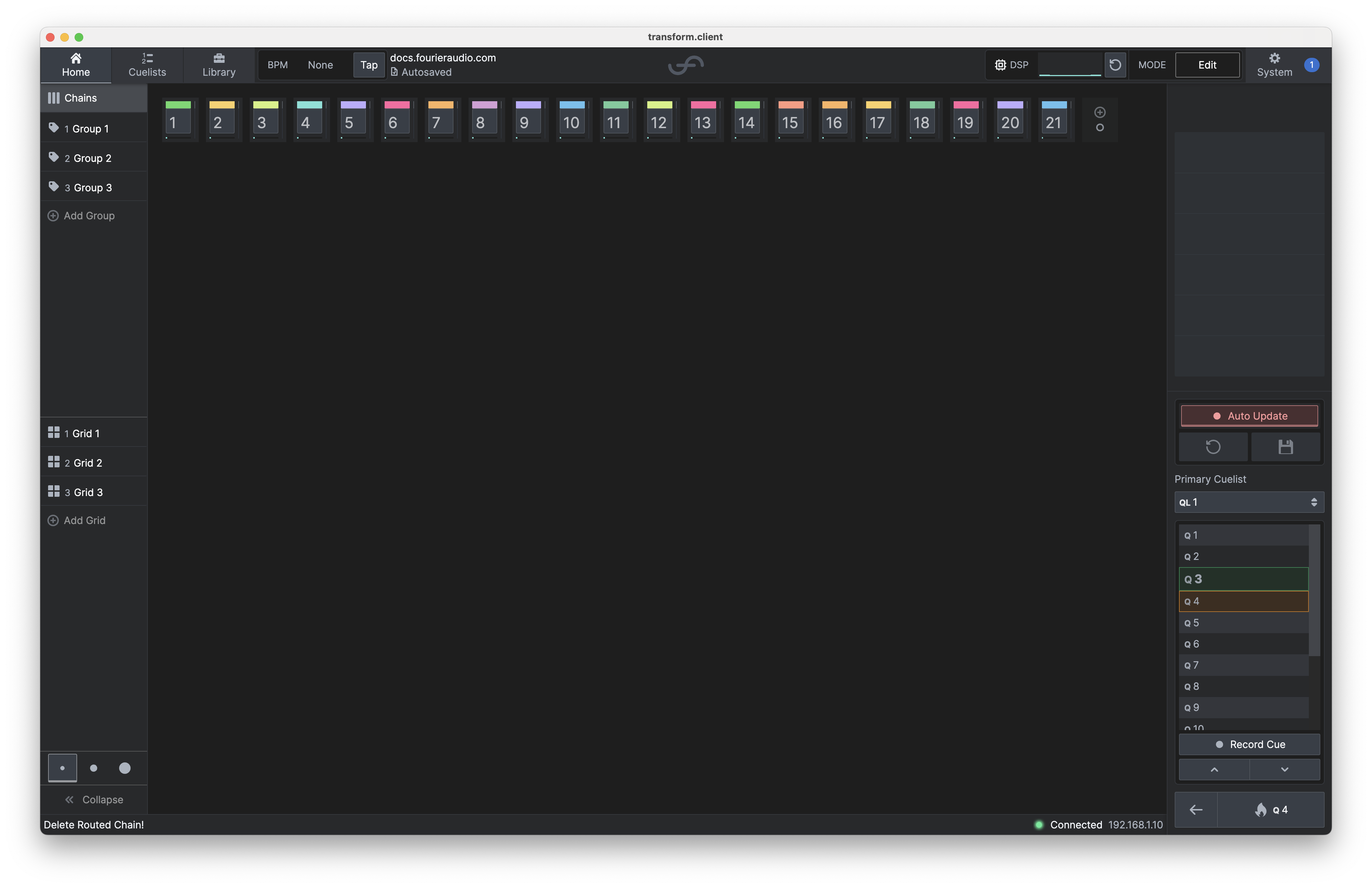
Whilst in the top navigation bar, you'll see the global tap tempo control, the showfile name, the DSP load indicator, and the transform.engines current mode to give you rapid access to control your transform.engine.
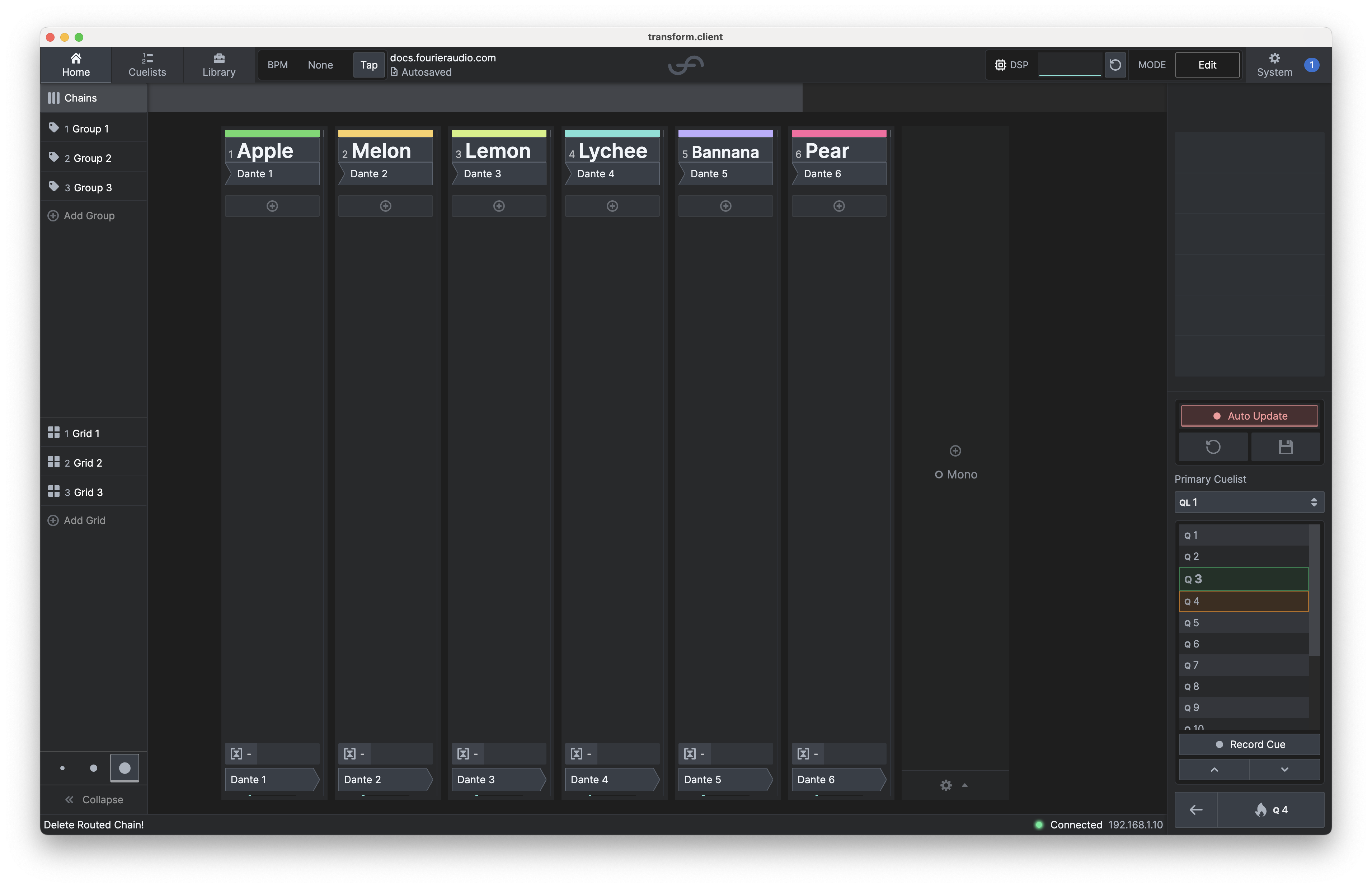
It's as simple as it looks, leaving you to build the perfect chain as soon as possible.
Detail Pane
With a chain selected, the detail pane at the bottom of the UI shows configuration relating to the chain.

Input / Output
Here you can configure the channels patched to the chain's inputs and outputs, as well as the "width" of the chain (how many channels of audio it contains). The options are Mono, Stereo, and Multi. The first two are hopefully self-explanatory, whilst Multi allows you to set up chains containing up to 64 audio channels (wow!), useful for surround-sound plugins.
Click the patch indicator to enter the patch selection view:
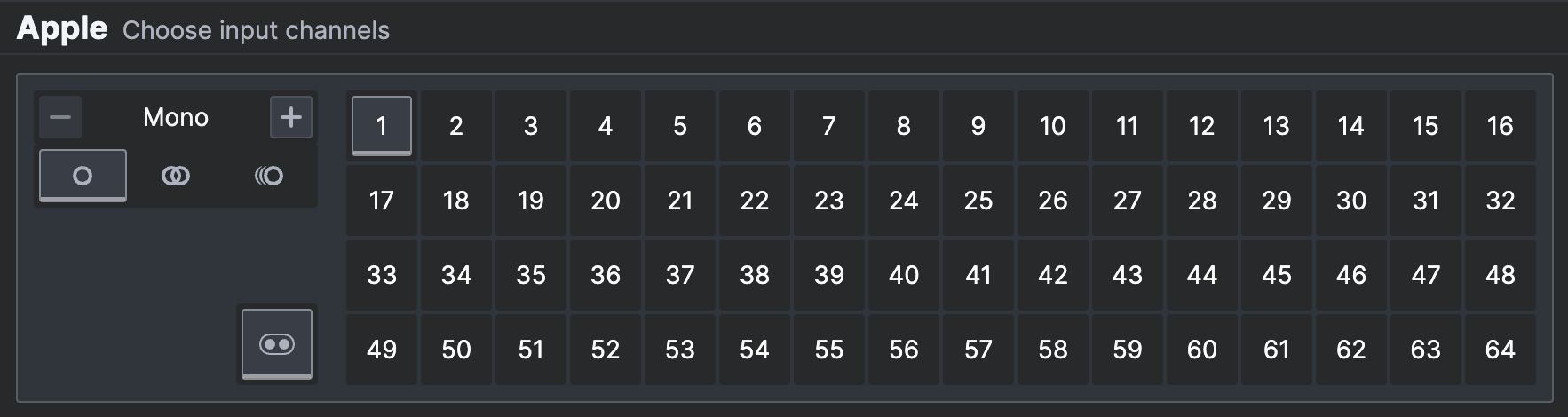
This allows you to select which channels are used. By default, the patched channels are always grouped together in one contiguous block, but if you want to select arbitrary channels, you can toggle the "group channels" button:

Chain Groups
In this section, you can assign a chain to one or more chain groups. You can filter the displayed chains to only display the chains in a given group; see chain groups for more details.
Latency Group
In this section, you can assign the chain to a single latency group to enable latency compensation for that chain. See Delay Compensation for more info.
DSP Load
This section discerns the DSP Load of each chain on a DSP core. They identify the core number and any peaks, which can be reset in the Navigation Bar or the Performance Tab.
View Controls
On the left hand side of the screen is the view controls menu.
Chain Groups
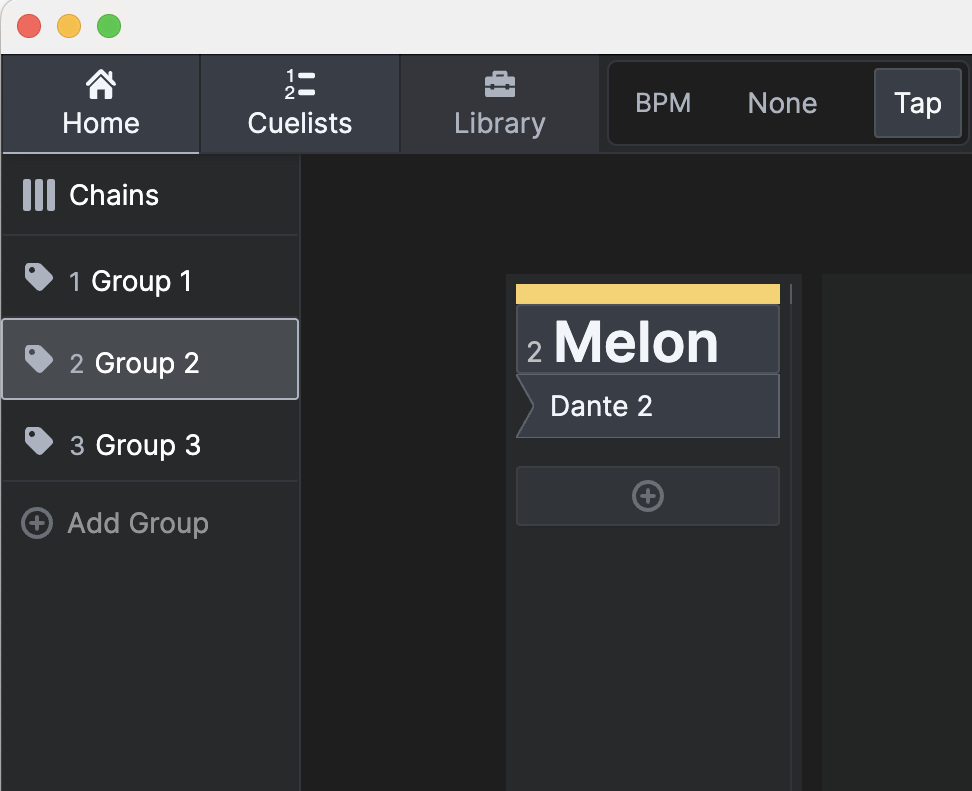
By default, all chains are shown. If you have placed chains into chain groups, you can select a chain group here to filter the display to only show the chains in that group:
Plugin Grids
A plugin grid is a saved layout of specific plugins in your show, allowing you to quickly access the plugins you need. To open a plugin grid, select it here:

View Density Control
By default, all chain information is shown in a low-density view. The density control lets you see less information about each chain, allowing you to see more chains at once:

The other options available are medium density:
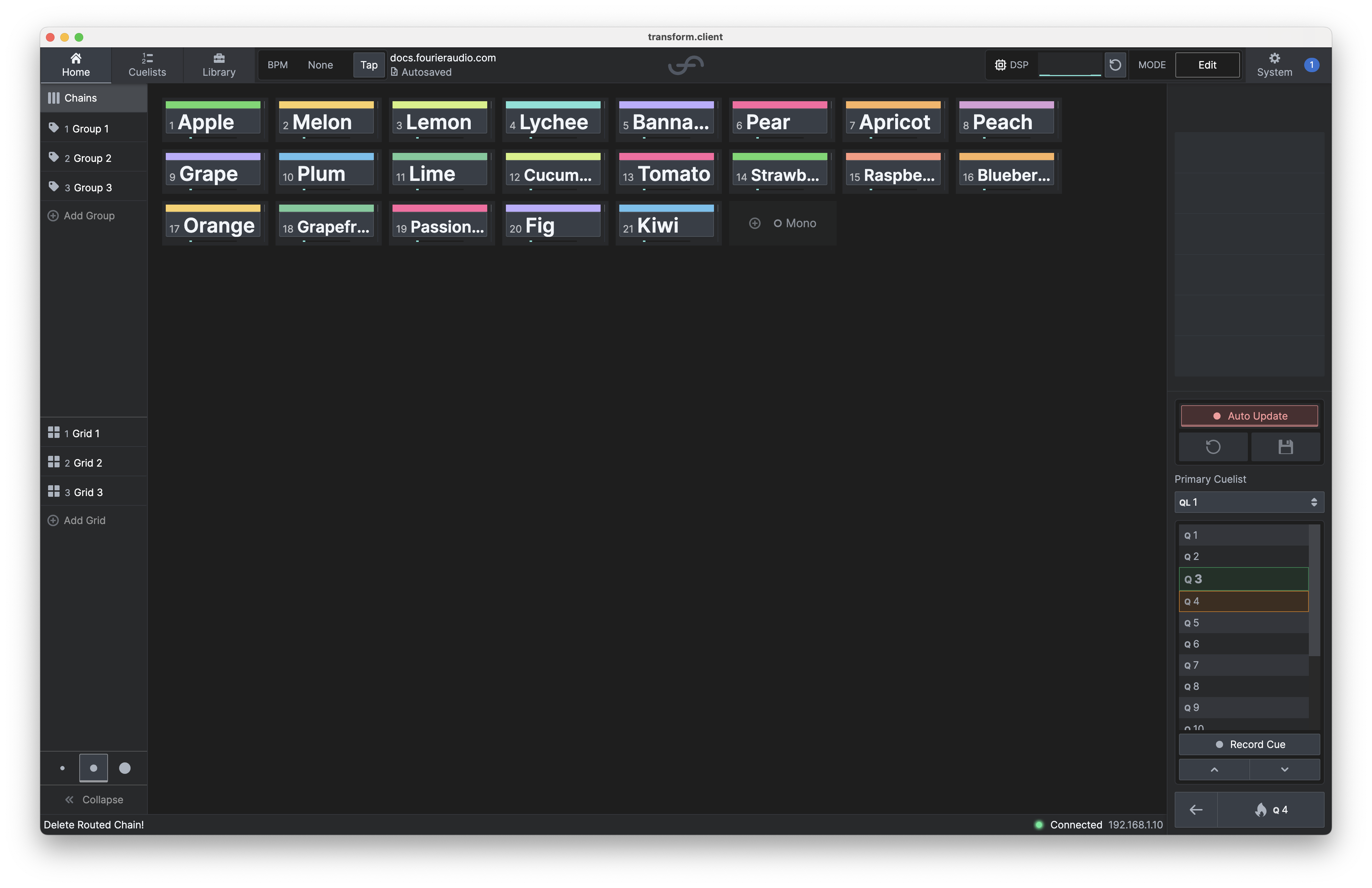 And high density:
 In each case, output meters are shown for each chain.
Action Menu
With a chain selected, there are various actions available in the action menu on the right hand side of the screen.
Move/Renumber Chains
Chains are displayed in numerical order. With these actions, you can either move the chain left/right, or alternatively renumber the chain to an arbitrary number.
Restart Chain
Selecting this option asks the transform.engine to stop all audio processing for a chain, unload the plugins, and then restart the chain. This can be useful if a plugin is misbehaving.
Delete
If you don't like a chain, this option allows you to eliminate it. It's quite satisfying, really.