Reducing Temperature
The Audio Renderer reports the temperature of the hottest CPU core rather than an average across all cores, providing the most accurate indication of the thermal conditions affecting system performance. If this is still higher than expected, there are a few things you can try.
Check Rack Ventilation
The transform.engine takes air in through the front of the unit, and exhausts out the sides.
Remove the unit from its rack and place it in an open environment with the front and side ventilation unobstructed. Power on the unit, run it under a typical plugin load, and monitor the temperature under System > System Status > Audio Renderers in transform.client.
If the temperature returns to a normal level, check the rack for restricted airflow before reinstalling the unit. If the temperature remains unusually high, power off the unit, disconnect mains power, and continue with the following procedure.
Clearing the Cooling Assembly
Dust can accumulate inside the transform.engine cooling assembly over time, particularly in some operating environments. Cleaning dust from the CPU heatsink will improve cooling performance and reduce the CPU temperature.
The temperature indicator in transform.client uses the following alert state:
> 90°C - The unit is operating at the upper thermal limit. Continued operation at this temperature may reduce performance. A danger indicator will appear in the status bar.
Follow the steps below if the unit remains in a Danger state under plugin load.
Items Required
- A torque screwdriver with a Torx T8 driver bit and a PZ1 driver bit
- Physical access to the transform.engine out of its rack
- transform.client V1.6.0 or later running on a supported computer
- An electronics cleaning brush, handheld compressed air, or an electronics air duster
Warnings
- This procedure must only be performed by a Skilled Person with appropriate experience or training to identify and mitigate hazards posed by energy sources inside the product.
- Electrostatic discharge (ESD) may cause permanent damage to the transform.engine. Perform this procedure only at an ESD-controlled workstation, for example by wearing an anti-static wrist strap attached to the transform.engine earthing post.
- There is a risk of overheating or fire if the cooling system is not assembled correctly. Use only approved parts sourced from Fourier Audio, and ensure that the fan and air duct are refitted exactly as described.
- Do not use a vacuum cleaner or hoover directly inside the unit. Vacuum cleaners can generate static discharge and may damage the motherboard.
- Do not allow any cleaning tool to make unnecessary direct contact with motherboard components.
- Avoid spinning the fan excessively with compressed air, as this can generate back voltage into the fan circuitry and potentially damage the motherboard.
Steps
-
Power the unit off.
-
Disconnect mains power.
-
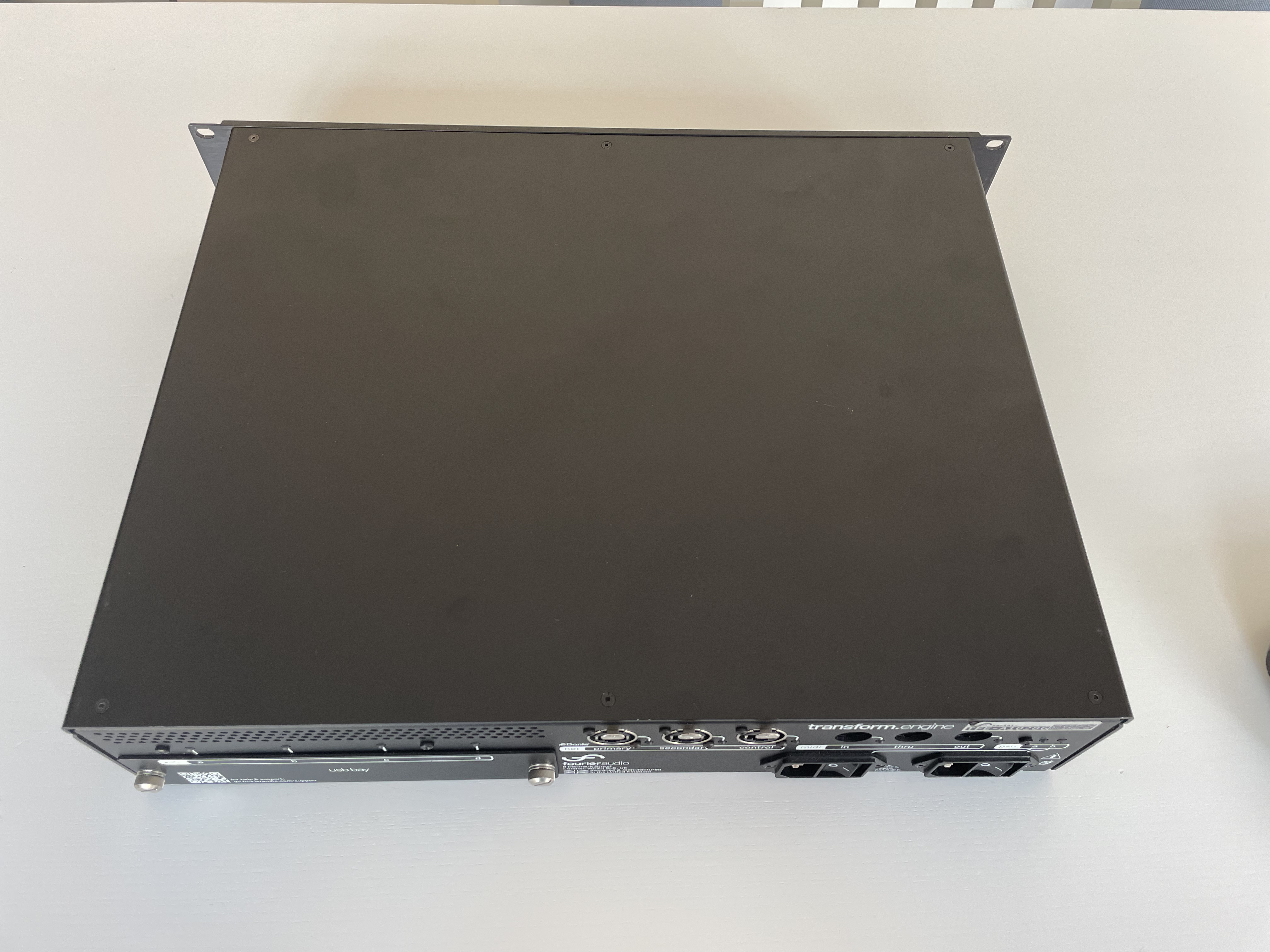
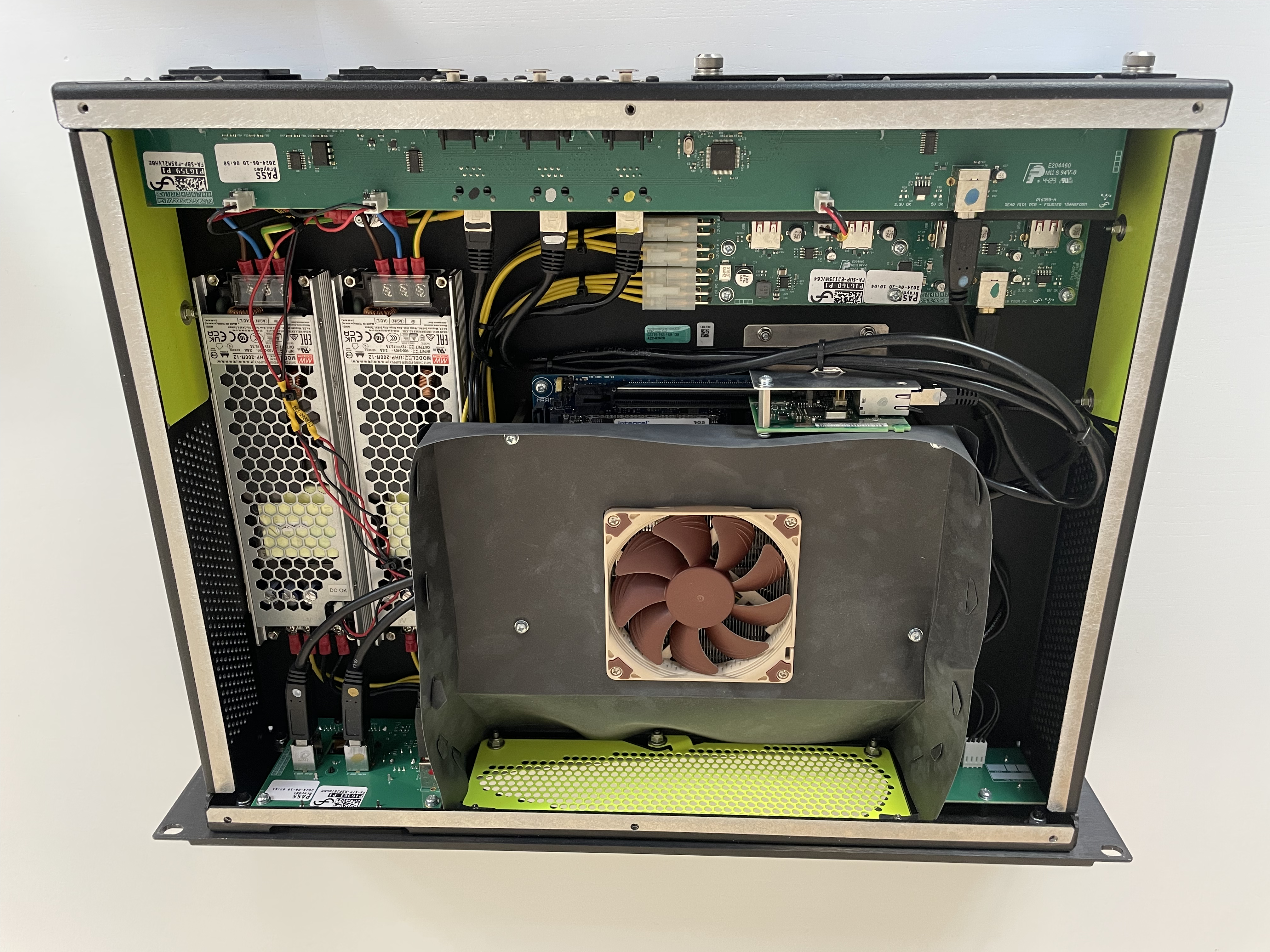
Remove the lid by taking out the 6 M3 screws with a Torx T8 driver bit.
-
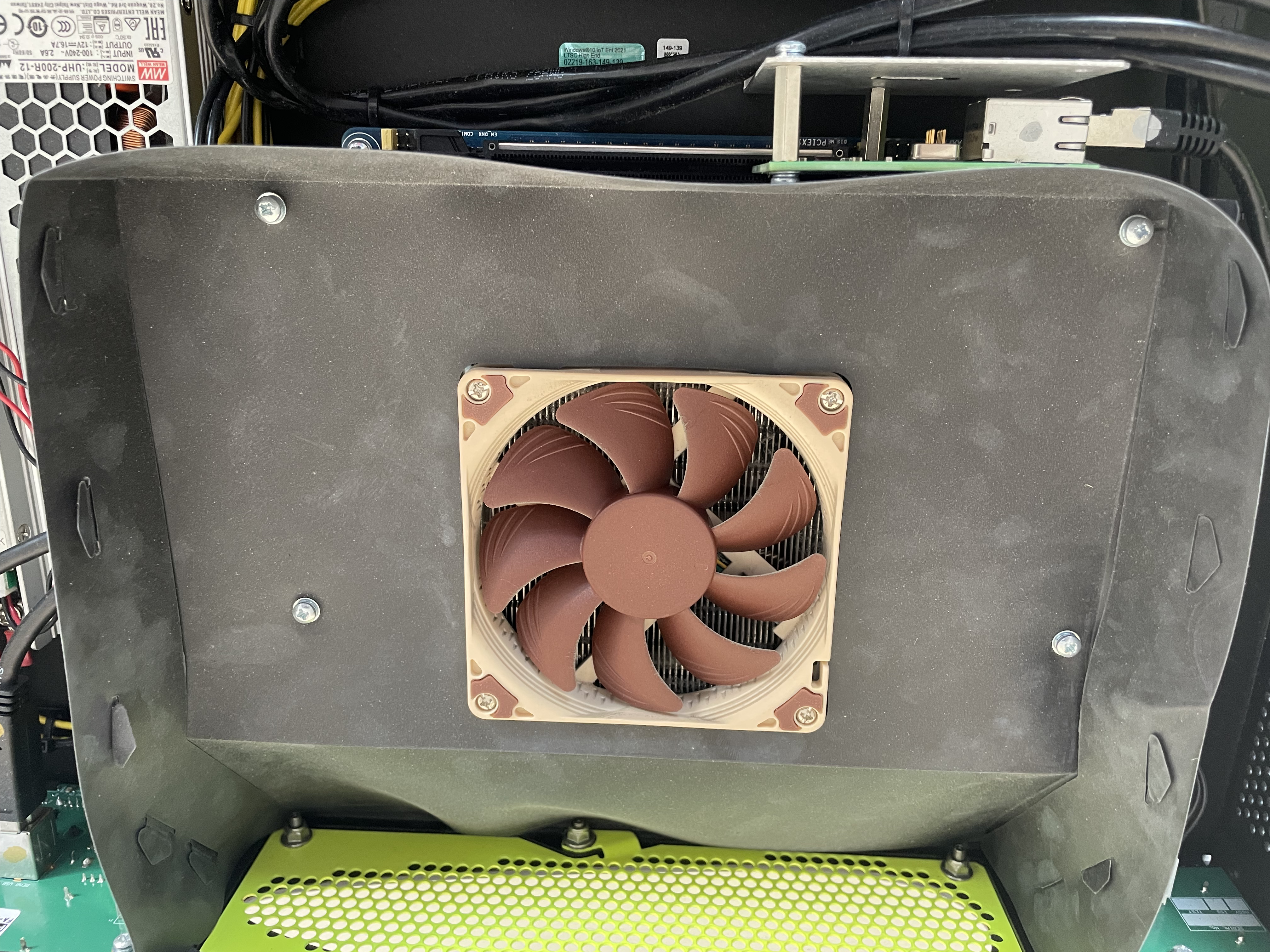
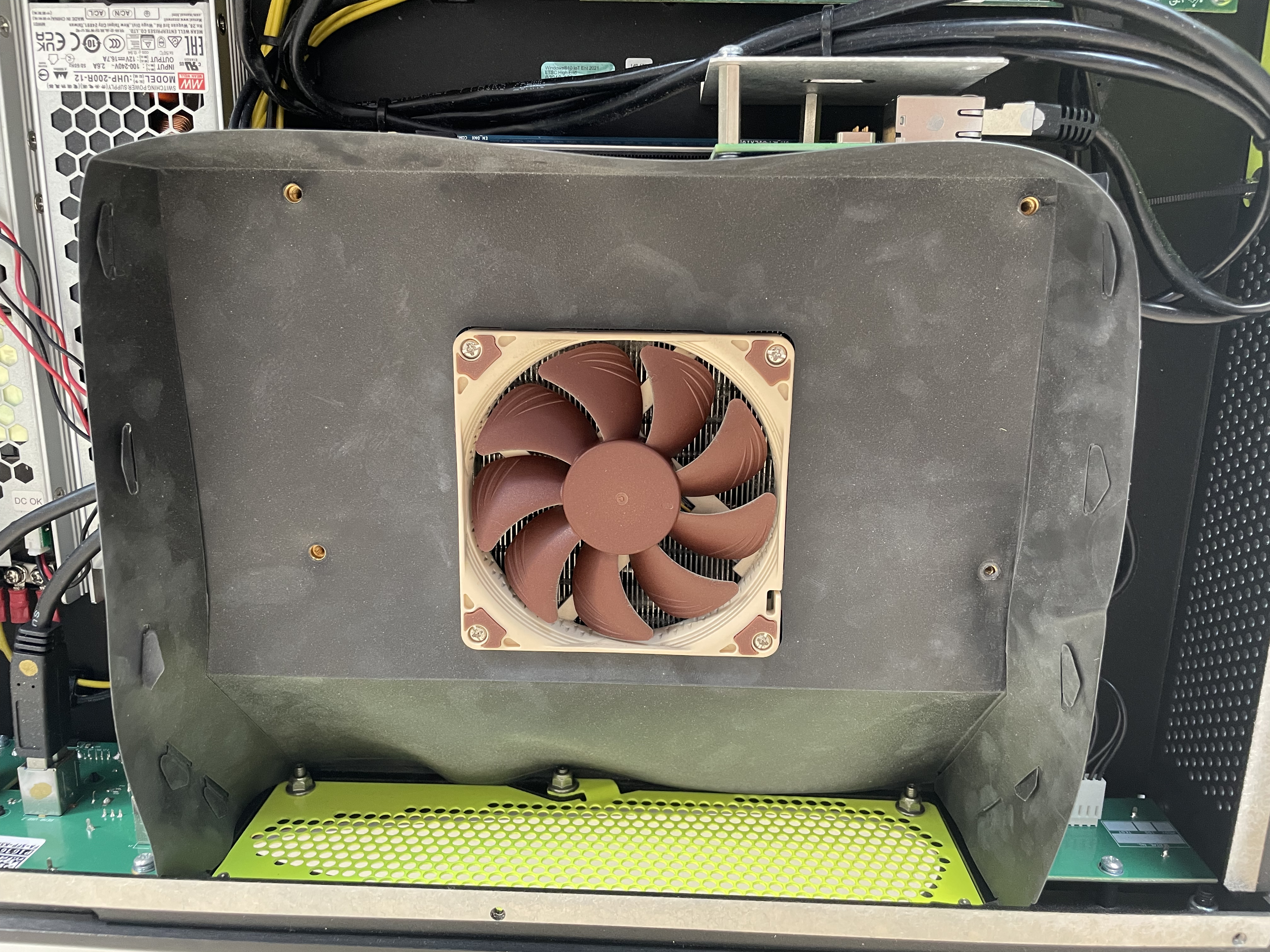
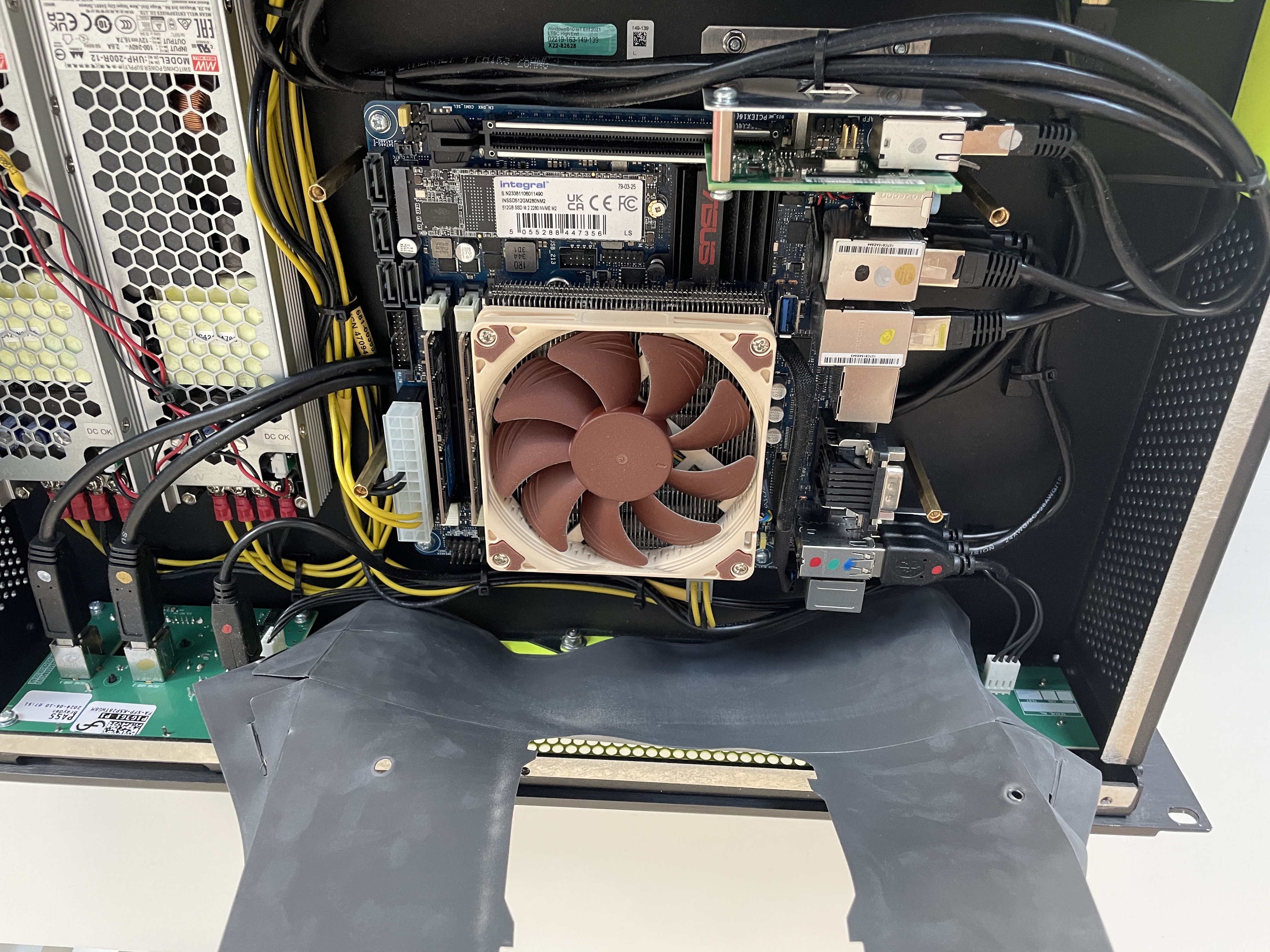
With a PZ1 bit, remove the 4 screws securing the air duct assembly and carefully fold it up. Do not undo the bolts holding it to the front of the unit.
-
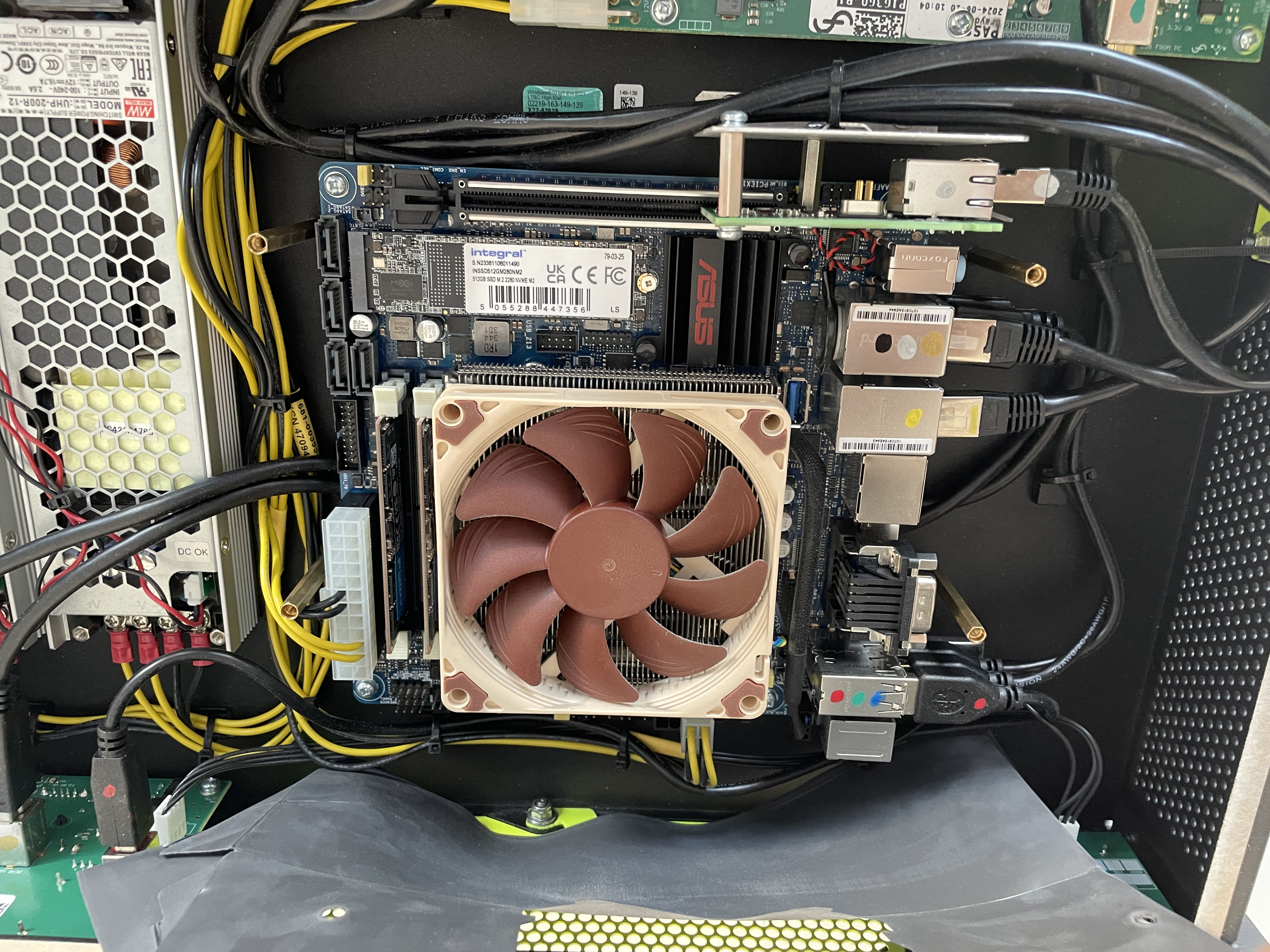
With the same driver bit, remove the 4 screws securing the Noctua fan to the heatsink.
-
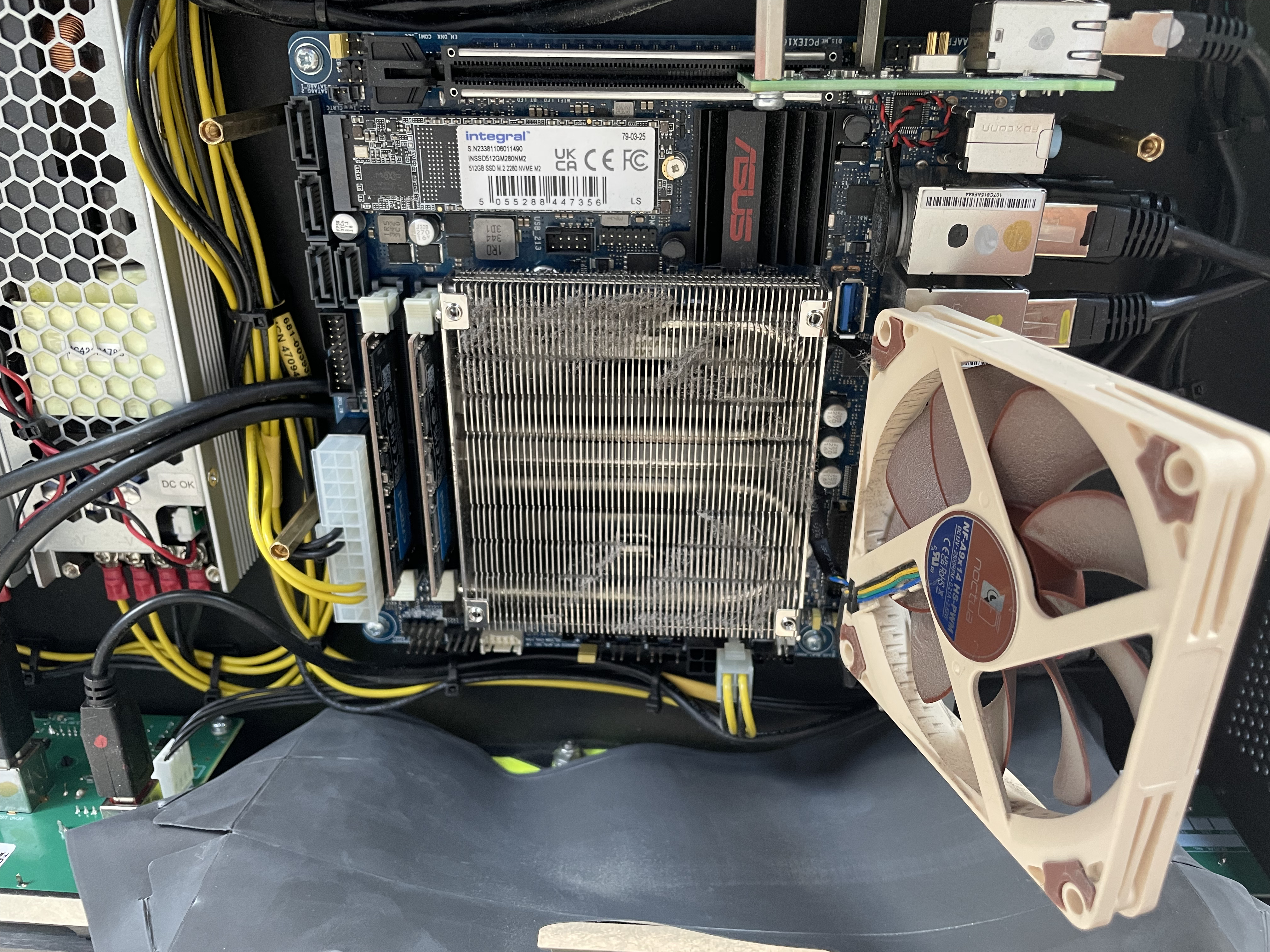
Carefully lift the fan upwards away from the heatsink fins, taking care not to strain the fan cable.
-
Gently remove dust build-up from the heatsink fins.
-
Once cleaned, visually inspect the heatsink for any remaining dust.
-
Refit the fan assembly.
-
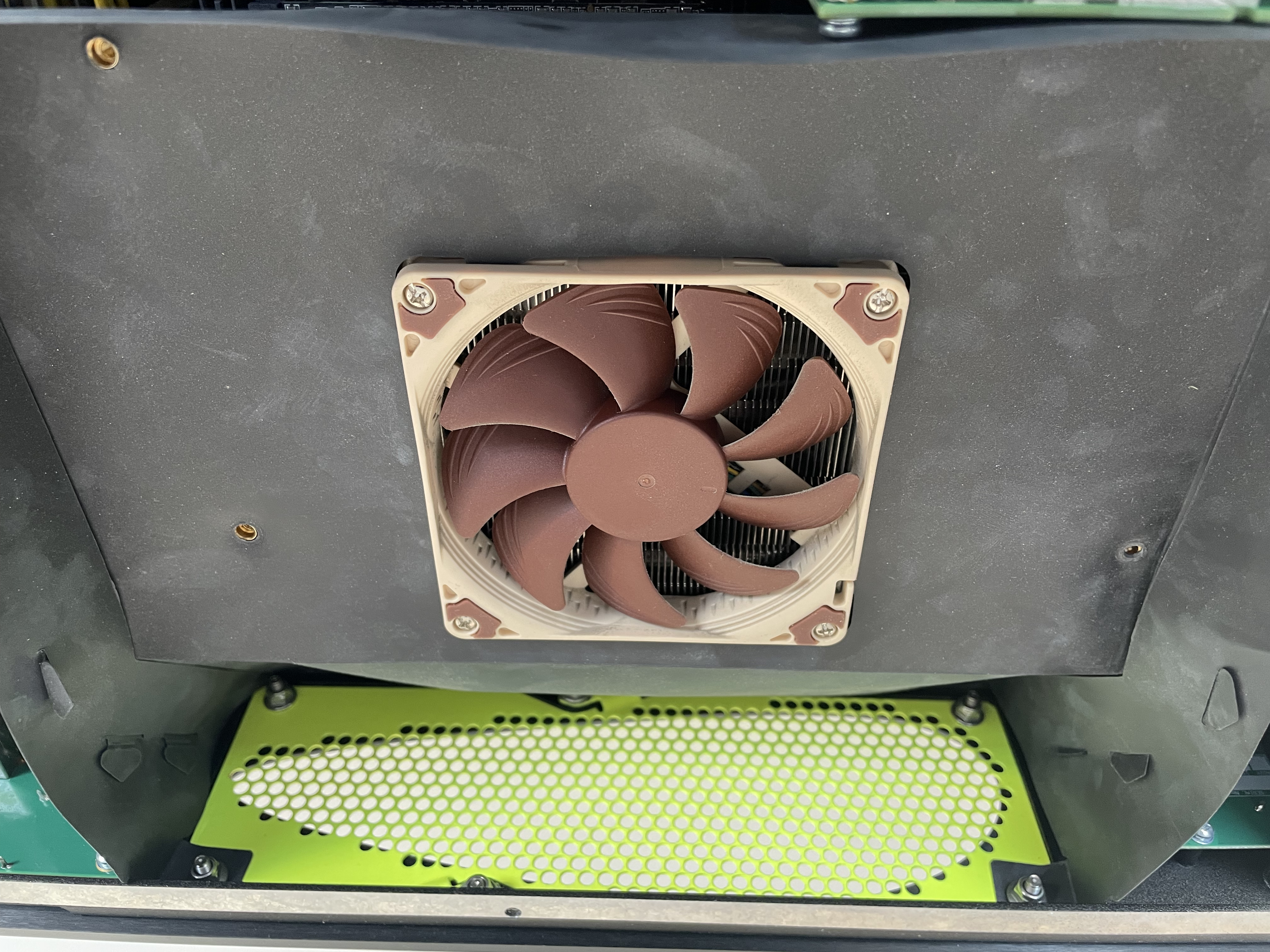
Refit the air duct with the 4 screws and washers previously removed. Tighten each screw to 5 lbf-in. Ensure that the duct sits around the fan as shown in the correct example.
Incorrect Correct 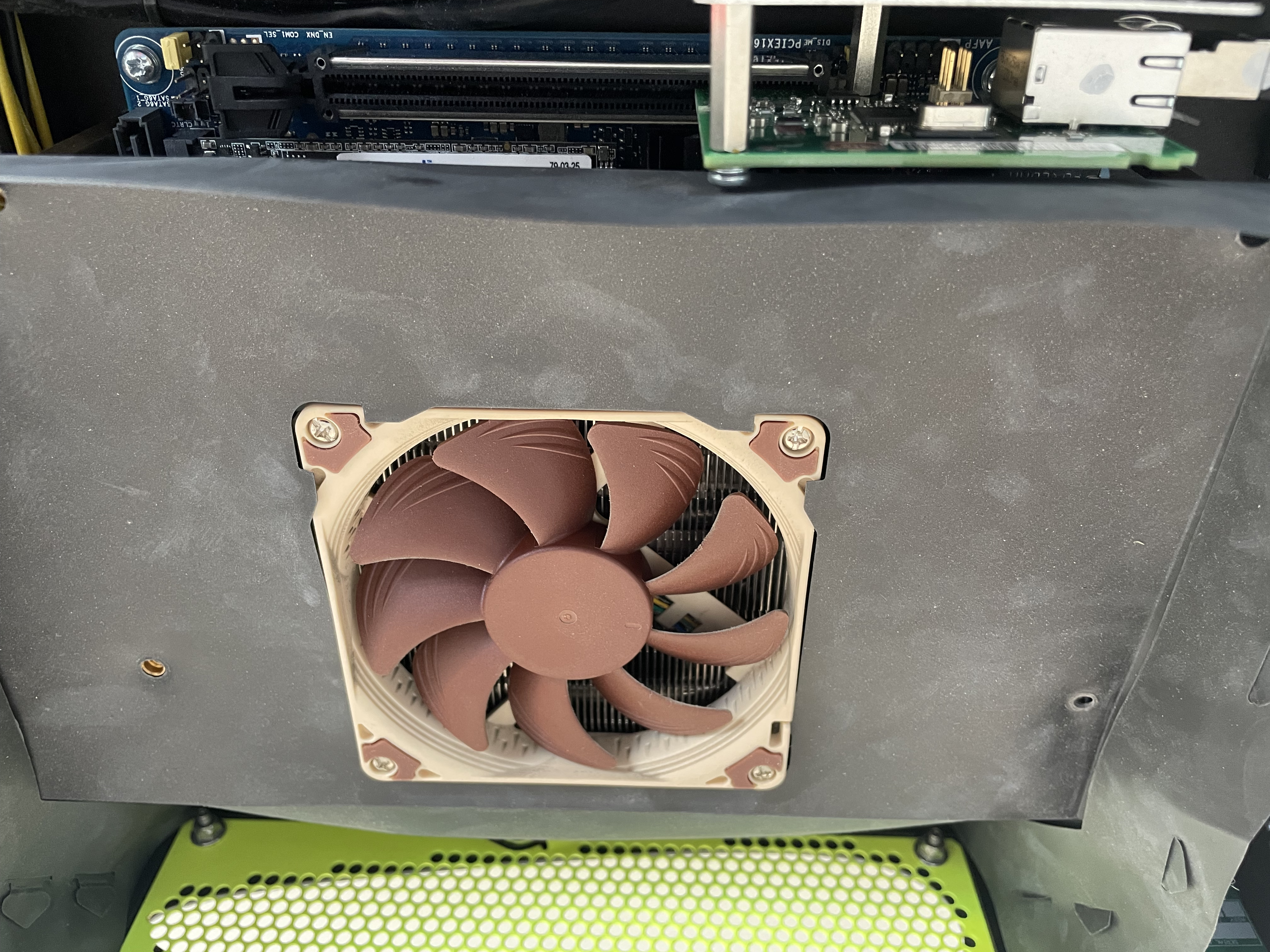
-
Refit the lid with the 6 screws previously removed. Tighten each screw to 6 lbf-in.
-
Power on, then connect with transform.client.
-
Navigate to System > System Status > Audio Renderers and observe the system temperature.
If the unit still shows unusually high temperatures, the issue could be due to thermal coupling between the CPU and heatsink. In this case, please contact Fourier Audio Support for further assistance.