Plugin Grids
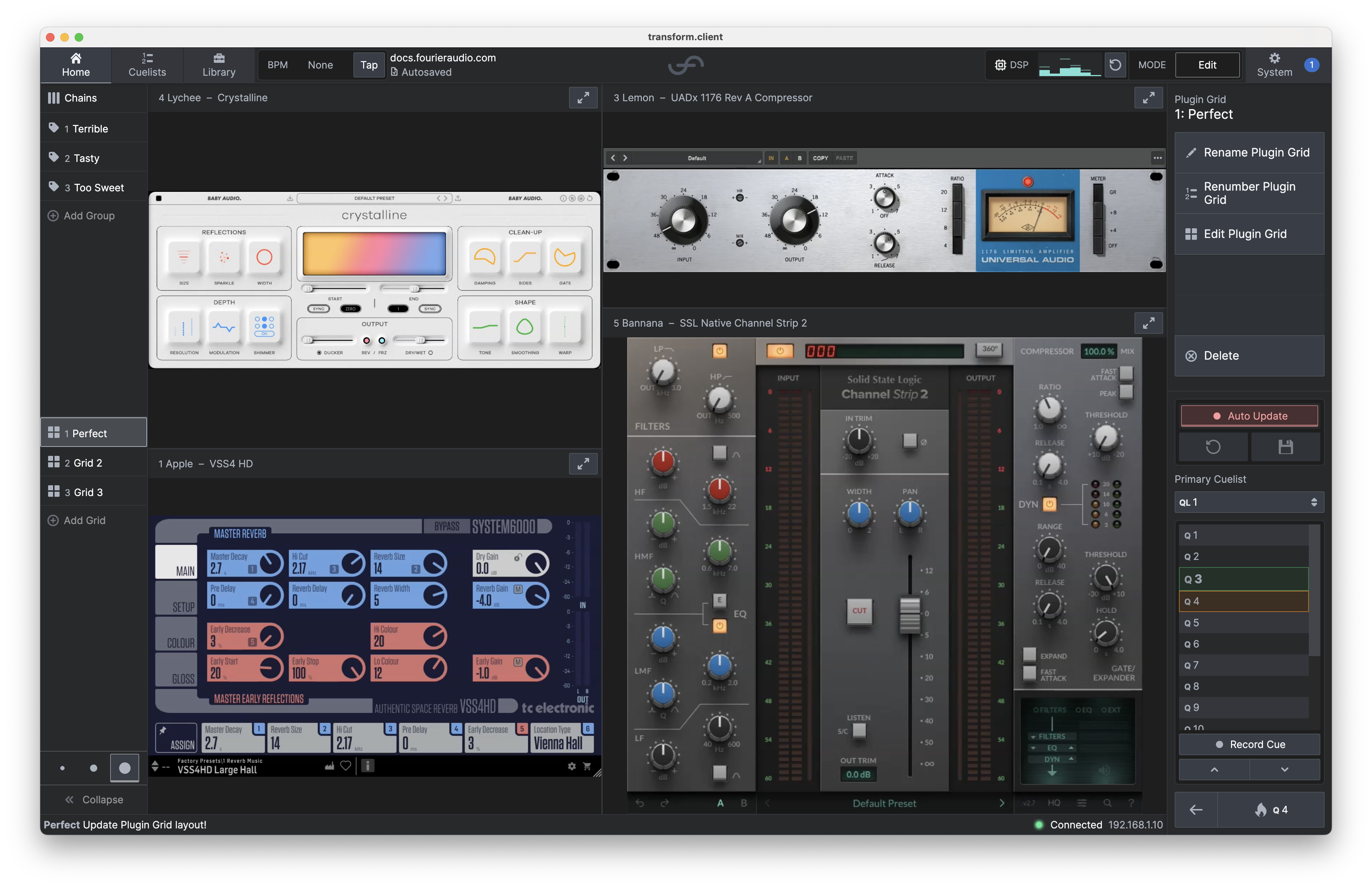
Plugin grids let you get quick access to a pre-configured layout of specific plugins from your show.
You can have as many plugin grids as you like, to allow you to configure your showfile to match your workflow. Plugin grids can contain up to 6 plugins in any layout you desire.
Creating a plugin grid
To create a new plugin grid, hit  in the view controls menu on the left hand side of the screen when in the home
tab.
in the view controls menu on the left hand side of the screen when in the home
tab.
Once created, with the grid selected you can rename, renumber or delete the grid using the action menu on the right hand side of the screen.
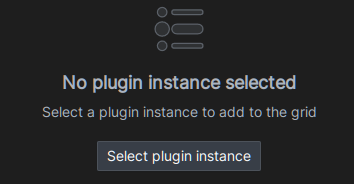
To pick your first plugin for the grid, press the button, and choose a plugin.
Editing a plugin grid
To add more plugins to the grid, select the grid in the view controls menu on the left hand side of the screen when in the home tab, and then use the action menu button to enter Edit Mode:

In this mode, you can:
- Add more plugins to the grid:

- Change the plugin in a pane:

- Remove plugins from the grid:

- Drag the separators between plugins to change the layout.