Universial Audio (UAD)
How to install Universial Audio (UAD) plugins on your transform.engine!
Installation
Software Required: UA Connect
Licensing Method: iLok (Licensing Guide)
Plugin Format: Windows VST3
Installer File Format: Custom folders (UA Connect required on an internet-connected machine)
UAD Support Website: UAD Support
warning
The correct Windows VST3 files will only be generated on a windows device. Running UA Connect on a Mac device will not create the correct VST3 files and will not work correctly on a transform.engine.
- On a personal device with internet access, download and install UA Connect from the link above.
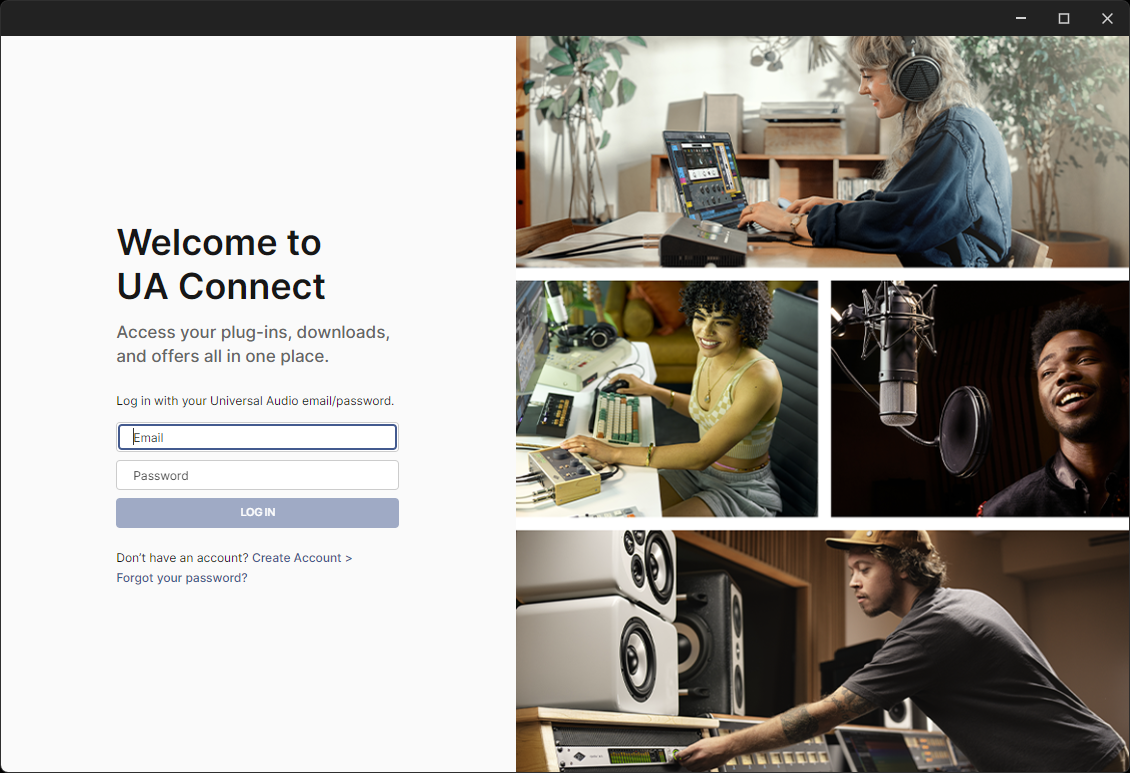
- Launch UA Connect and log into your Universal Audio account.
info
Ensure you have an iLok plugged into your personal device with the correct UAD licenses on.
- Download the plugins you own using UA Connect to the personal device.
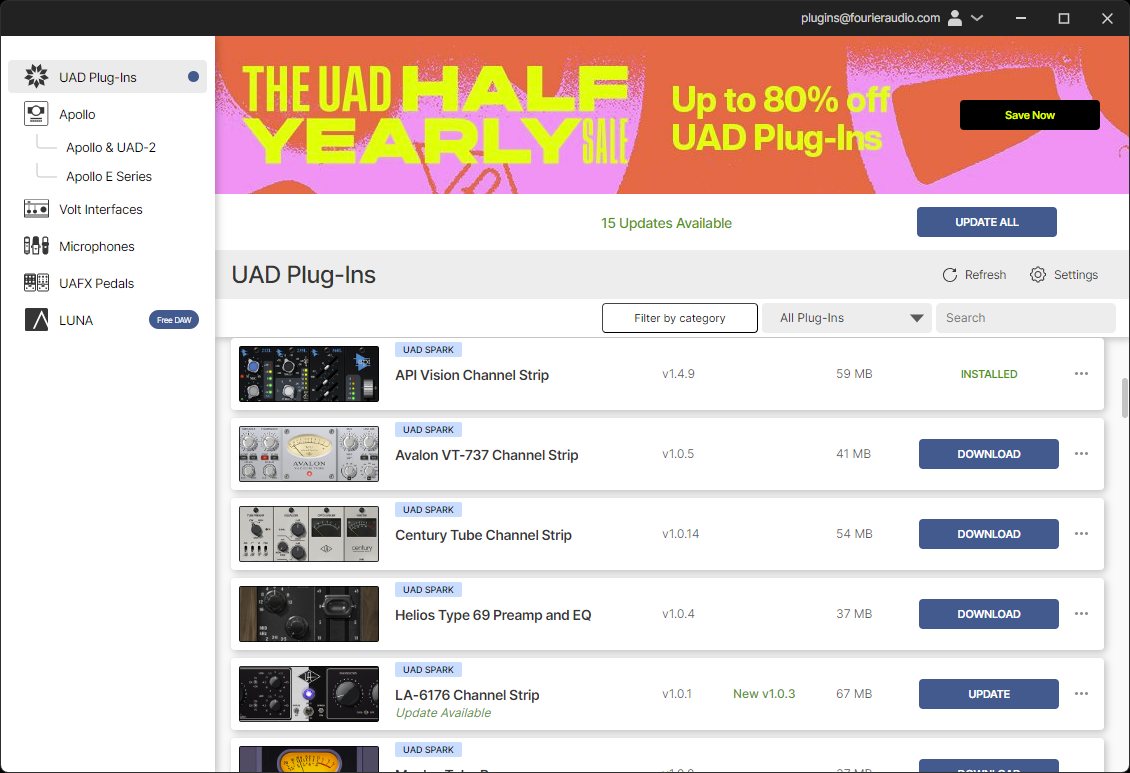
- Once installed, manually copy the following folders from your device to a USB stick:
C:\Program Files\Common Files\Universal AudioC:\Program Files\Common Files\VST3(copy only the.vst3folders related to UAD)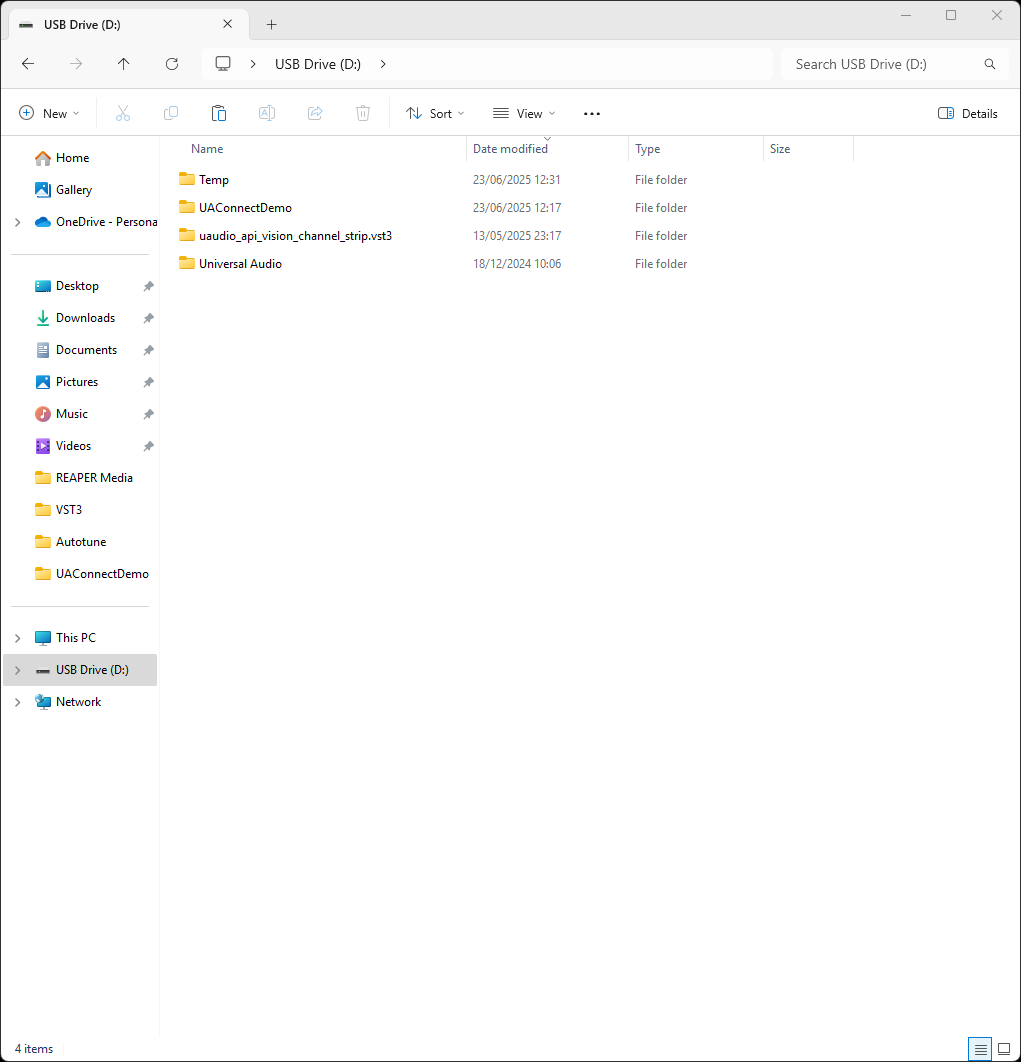
- Plug the USB stick (as well as the iLok with your UAD licenses) into any USB ports on the transform.engine and after following the Accessing Windows steps, you will be in a position to install the plugins.
- Locate your USB drive and copy the files to the same directory paths on the transform.engine that they were taken from on your Windows device.
Universal Audiofolder toC:\Program Files\Common Files\- All
.vst3folders toC:\Program Files\Common Files\VST3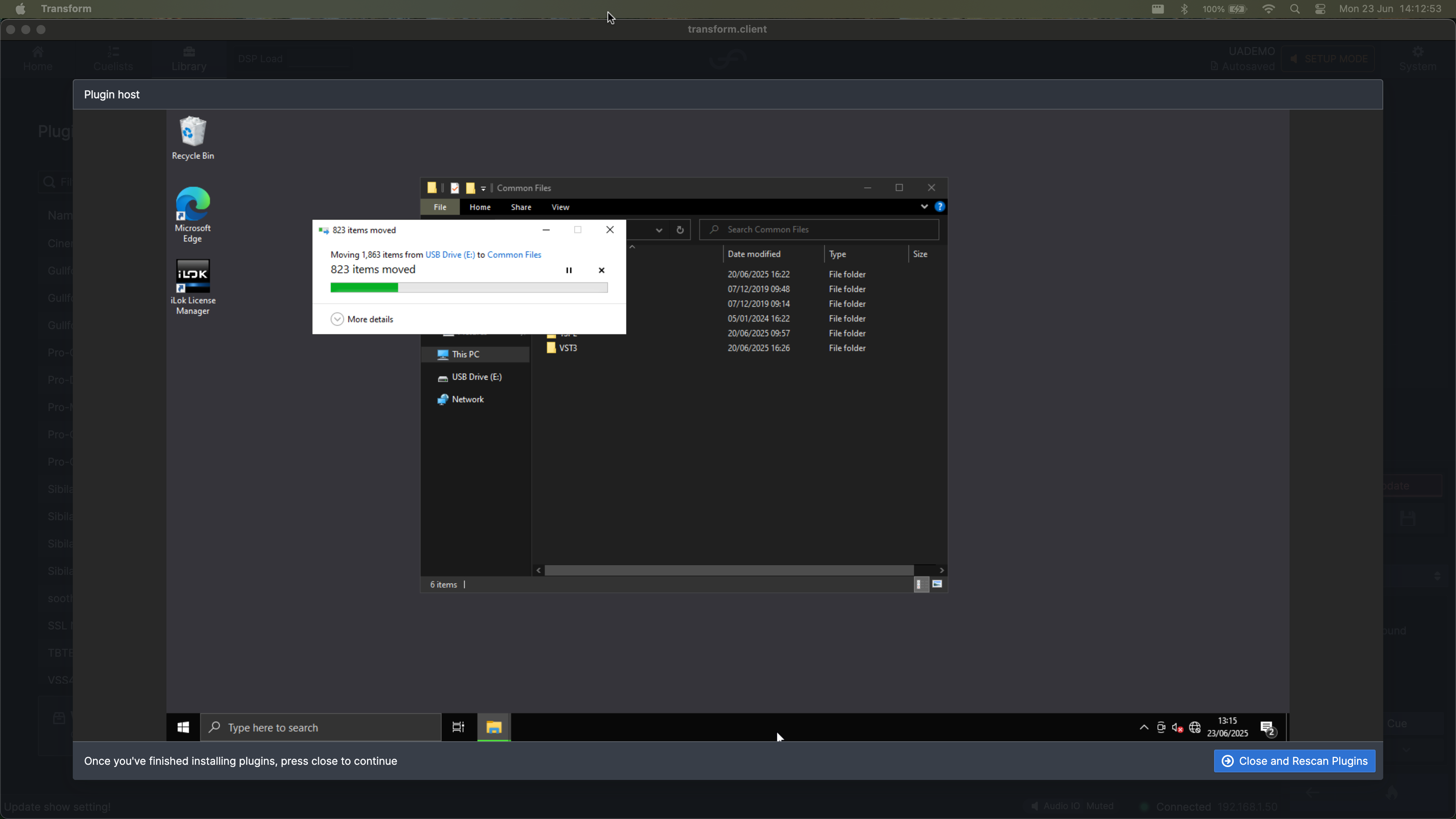
- Exit the plugin host and rescan to confirm that files are copied successfully.
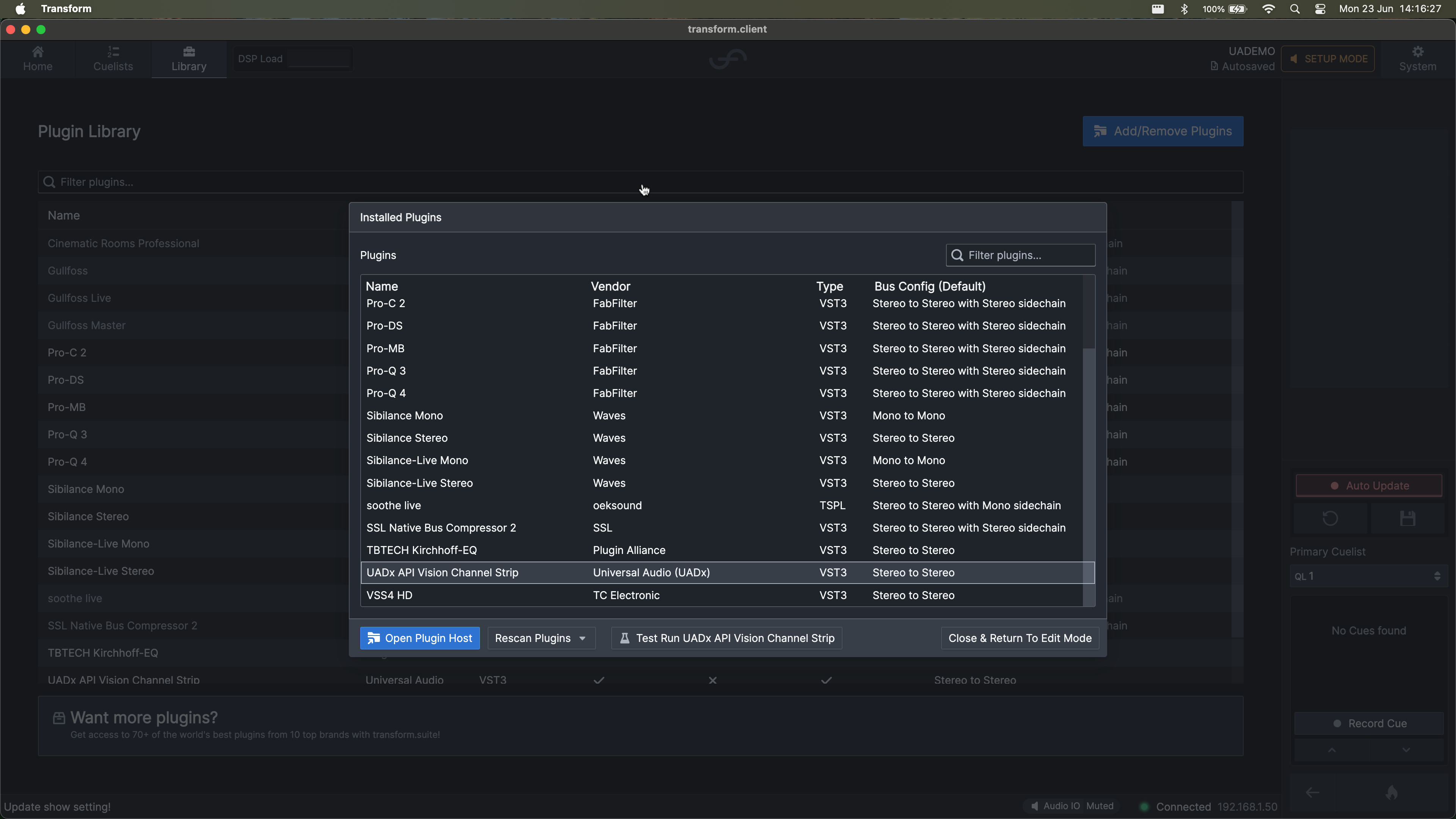
- Repeat the process if you have additional plugins to transfer.