Universial Audio (UAD)
How to install Universial Audio (UAD) plugins on your transform.engine!
Installation
Software Required: UA Connect
Licensing Method: iLok (Licensing Guide)
Plugin Format: Windows VST3
Installer File Format: Custom folders (UA Connect required on an internet-connected machine)
UAD Support Website: UAD Support
warning
The correct Windows VST3 files will only be generated on a windows device. Running UA Connect on A Mac device will not create the correct VST3 files and will not work correctly on a transform.engine.
- After following the Accessing Windows steps, you will be in a position to install plugins.
- On a personal device with internet access, download and install UA Connect from the link above.
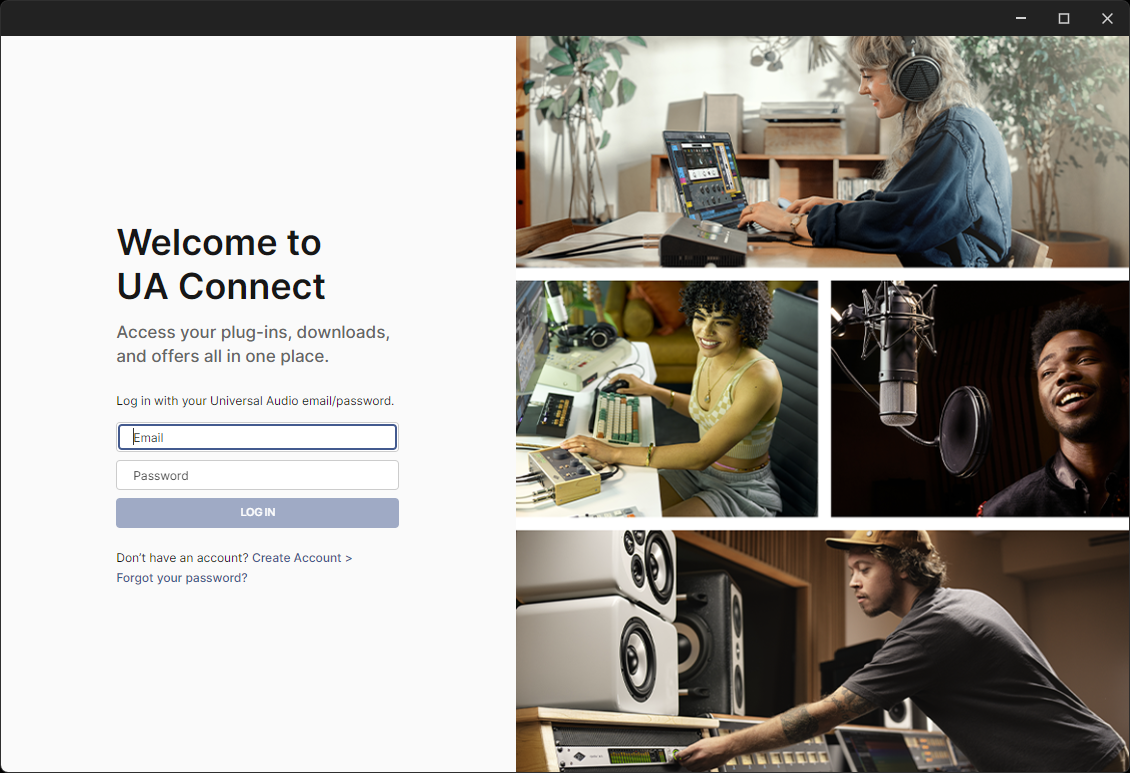
- Launch UA Connect and log into your Universal Audio account.
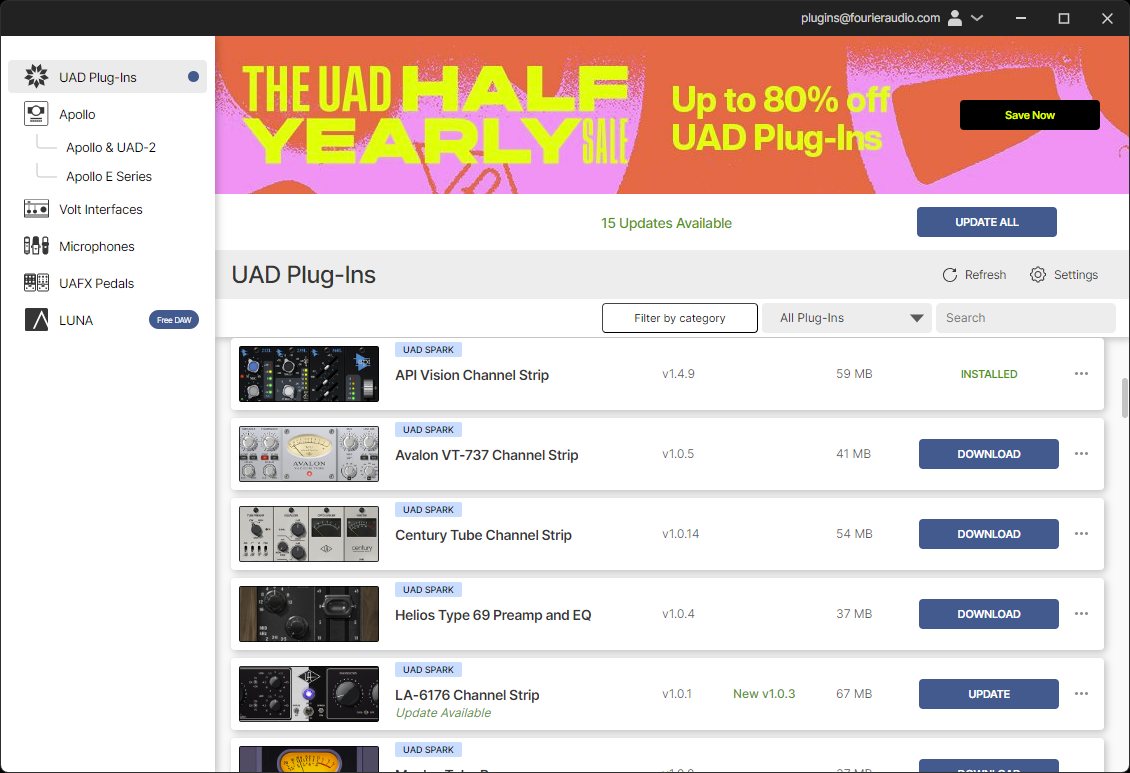
- Download the plugins you own using UA Connect to the personal device.
- Manually copy the following folders from your device to a USB stick:
C:\Program Files\Common Files\Universal AudioC:\Program Files\Common Files\VST3(copy only the.vst3files related to UAD)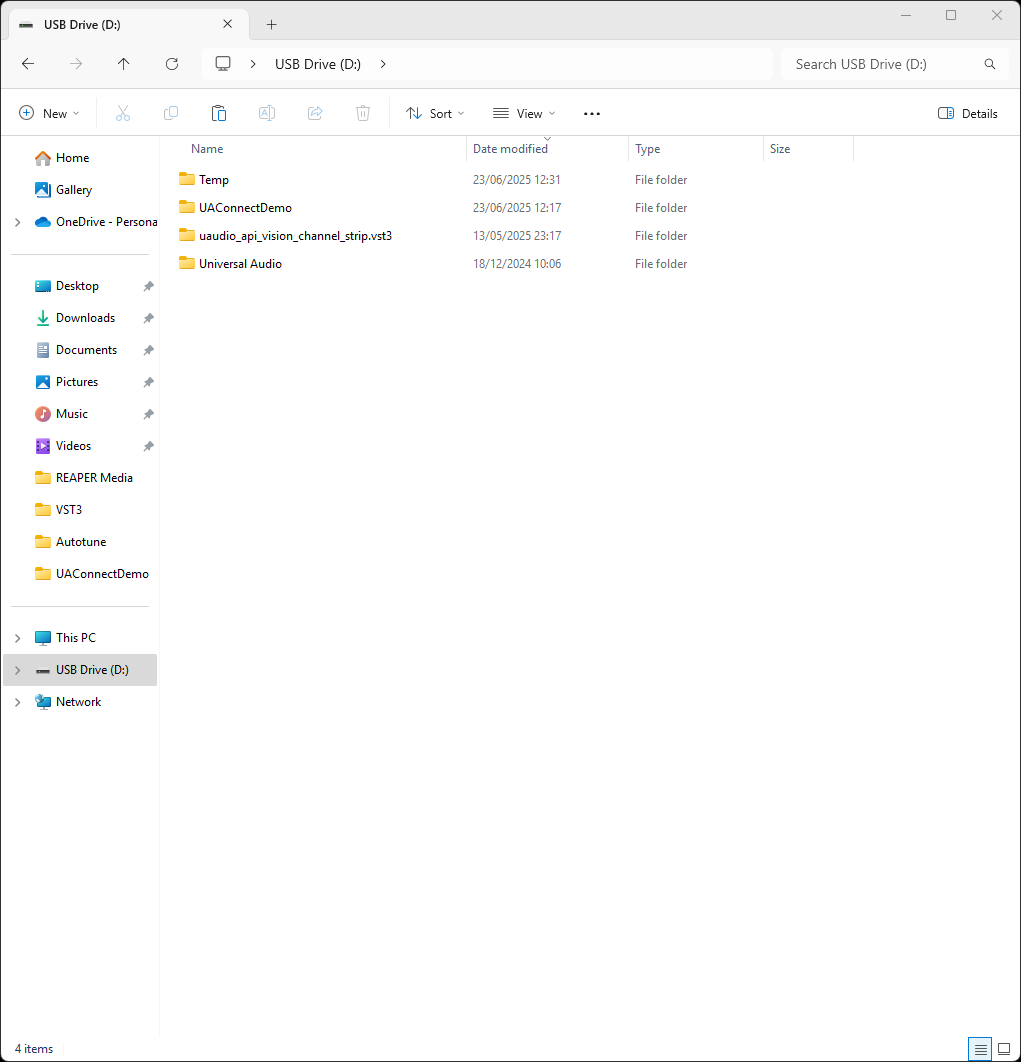
- Plug the USB stick into any USB port on the transform.engine and return to your plugin host as seen in step 1.
- Locate your USB drive and copy the files to the same directory paths on the transform.engine that they were taken from on your Windows device.
Universal Audiofolder toC:\Program Files\Common Files\- All
.vst3files toC:\Program Files\Common Files\VST3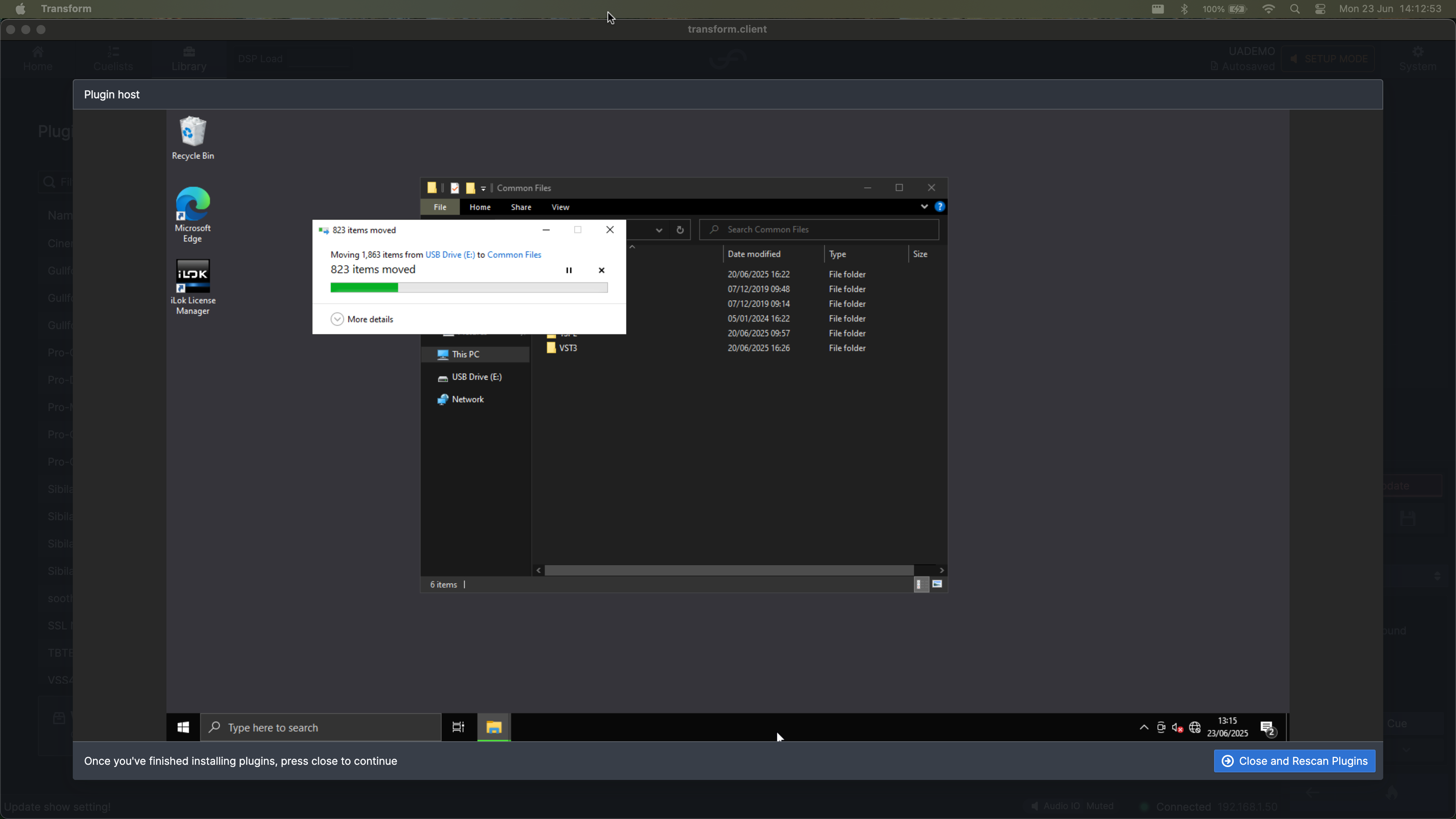
- Exit the plugin host and rescan to confirm that files are copied successfully.
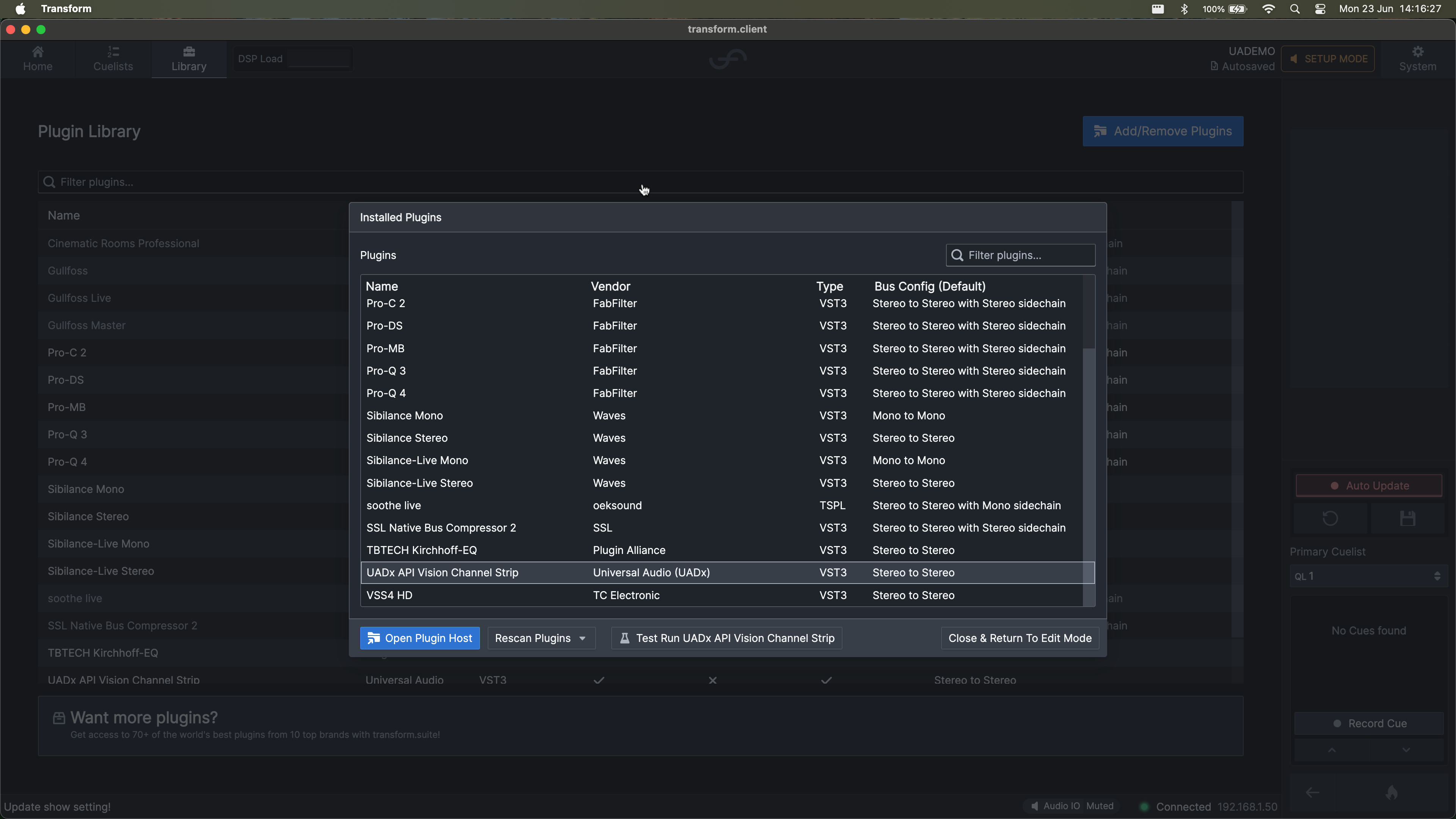
- Repeat the process if you have additional plugins to transfer.