Plugin Instances
With a plugin instance selected, you have a number of different options at your disposal in the detail pane at the bottom of the window.
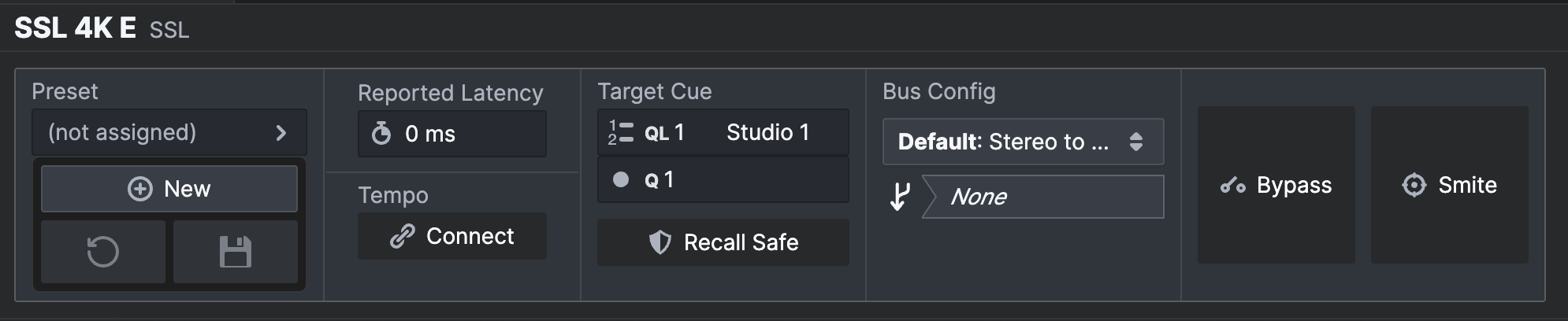
Live Presets
Live Presets allow you to save a plugin instance's state for later reuse, either in other cues, or in other plugin instances of the same type in any other chain.
What's more, when you update a preset, every place that references that preset in the showfile will automatically update to reflect the change, allowing you to make sweeping changes very efficiently.
For more information on how presets work, see the Presets section of the manual.
Storing a new preset
Click the "new" button to create a new preset from the current state of the plugin instance. Give it a sensible name that'll help you remember what that preset is for later, and the preset will then be stored and assigned to the plugin instance.
Referencing an existing preset
On the plugin instance that you want to refer to the preset, select (not assigned) to pick a preset from the library of previously-stored presets. Once
done, the plugin will refer to that preset, and will follow any modifications
to that preset in the future.
Modifying a preset
If a plugin which is referencing a preset is modified, the save and discard buttons in the preset pane will light up, and an asterisk will appear after the preset name, indicating that there are unsaved changes. At this point, the preset has not yet been modified, and only this plugin instance has been modified.
At this point, you can either:
-
Do nothing: this plugin will continue to be a unique, special creation, and will no longer follow any changes to the underlying preset.
-
Hit save: the preset will be updated to reflect the state of the plugin, and every other plugin that uses this preset will automatically update, wherever it is used in this showfile.
-
Hit new: a brand new preset will be created from the current state of the plugin, and the plugin will reference that new preset. The previous preset remains unchanged.
-
Hit discard: your changes from the preset are discarded, and the plugin reverts to the "clean" state stored in the preset.
Preset Library
You can see and manage all of the presets that exist in the showfile in the Presets section of the Library.
Clipboard
Additionally, the "Copy" and "Paste" buttons can be used to copy the state of a plugin instance to the clipboard, and later paste it to any other instance of the same type.
Reported Latency
Plugins report the amount of latency that they add to the chain. This value is updated when the chain starts and is used for latency compensation.
Connect Tempo
Enables the Global Tap Tempo to pass to the selected plugin instance. By default, a plugin instance is not connected to the Tap Tempo.
Live Cue
If you make changes to a plugin, the plugin will be saved into the live cue, either automatically if auto-update is on, or when you click "update" if not. This indicator shows you the currently live cue for the plugin.
Bus Config
You can use this section to select the plugin's audio bus configuration between the different options made available by the plugin. For example, this might allow you to change between e.g. Stereo, Stereo with sidechain, or Surround modes.
If there are no bus configurations shown, you may need to re-scan your plugins: you will be prompted to do this in the Library Tab if this is the case.
The sidechain patch selector allows you to select the source for the sidechain input to the plugin, if supported by the plugin:

Smite
If a plugin is misbehaving, or you just decide that you wish to terminate its continued existence
for the hell of it without removing it from the chain and losing its configuration, you can Smite
a plugin. This will kill the plugin and unload it from the chain. Audio will be interrupted when
this happens, but once smitten, the plugin will consume zero DSP resources.
Bypass
If you want to temporarily route audio around a plugin so that it bypasses the plugin's processing,
you should select Bypass. The plugin will still be loaded, but audio will temporarily skip that
plugin in the chain. Audio is not interrupted when you bypass/un-bypass a plugin, but the plugin will
continue to consume DSP resources.