HYPERPORT Quickstart
This page will hopefully get you up and running as soon as possible; we've kept it lean on purpose. For more detailed information regarding all things transform.engine, please take a deep dive into our manual, which you can find in the sidebar on the left.
HYPERPORT is the lowest-latency way to connect transform.engine directly to a DiGiCo console.
Unpacking your transform.engine
Release your transform.engine. In the box, you should find:
- a transform.engine
- 2x IEC power lead
- a safety information document
If anything is missing, contact your supplier. Read the safety information before installing or powering on transform.engine.
What you need
In addition to the items supplied with transform.engine, you will need:
- a compatible DiGiCo console or interface
- a computer running transform.client v1.7.0 or newer
- one network cable for the direct HYPERPORT audio connection
- one network cable for the Control connection
See the DiGiCo version compatibility grid for the required version and support links for each interface.
How the connections work
HYPERPORT audio and transform control use separate connections.
- Audio: Connect the Primary port of transform.engine directly to the compatible port on the console or interface. Do not put a network switch in this connection.
- Control: Connect the computer running transform.client to the Control port of transform.engine. This may be a direct connection or part of a suitable control network.
- Secondary: Leave the Secondary port out of the HYPERPORT audio path. It is not currently used for HYPERPORT.
Once the connections are in place, connect the IEC lead, switch on transform.engine, and allow a couple of minutes for it to start.
Configuring the Control network
Use the screen and encoder on the front of transform.engine to open IP Config and configure the Control port. The Control port and your computer must have addresses in the same subnet.
For example:
transform.engine Control port
- Mode:
Static - IP:
192.168.3.100 - Subnet prefix:
/24(equivalent to255.255.255.0)
Computer wired connection
- Mode:
Static - IP:
192.168.3.200 - Subnet:
255.255.255.0(equivalent to/24)
These addresses are examples only. Use addresses appropriate for your control network, and make sure that no two devices use the same address.
Connecting with transform.client
Download transform.client from the Downloads page and install it on your computer. The matching transform.engine software is bundled with the client, so you do not need to download a separate update file.
Open transform.client. You will be presented with the connection screen:
Select Connect to new device and enter the Control-port IP address of the
transform.engine. Using the example above, this is 192.168.3.100.
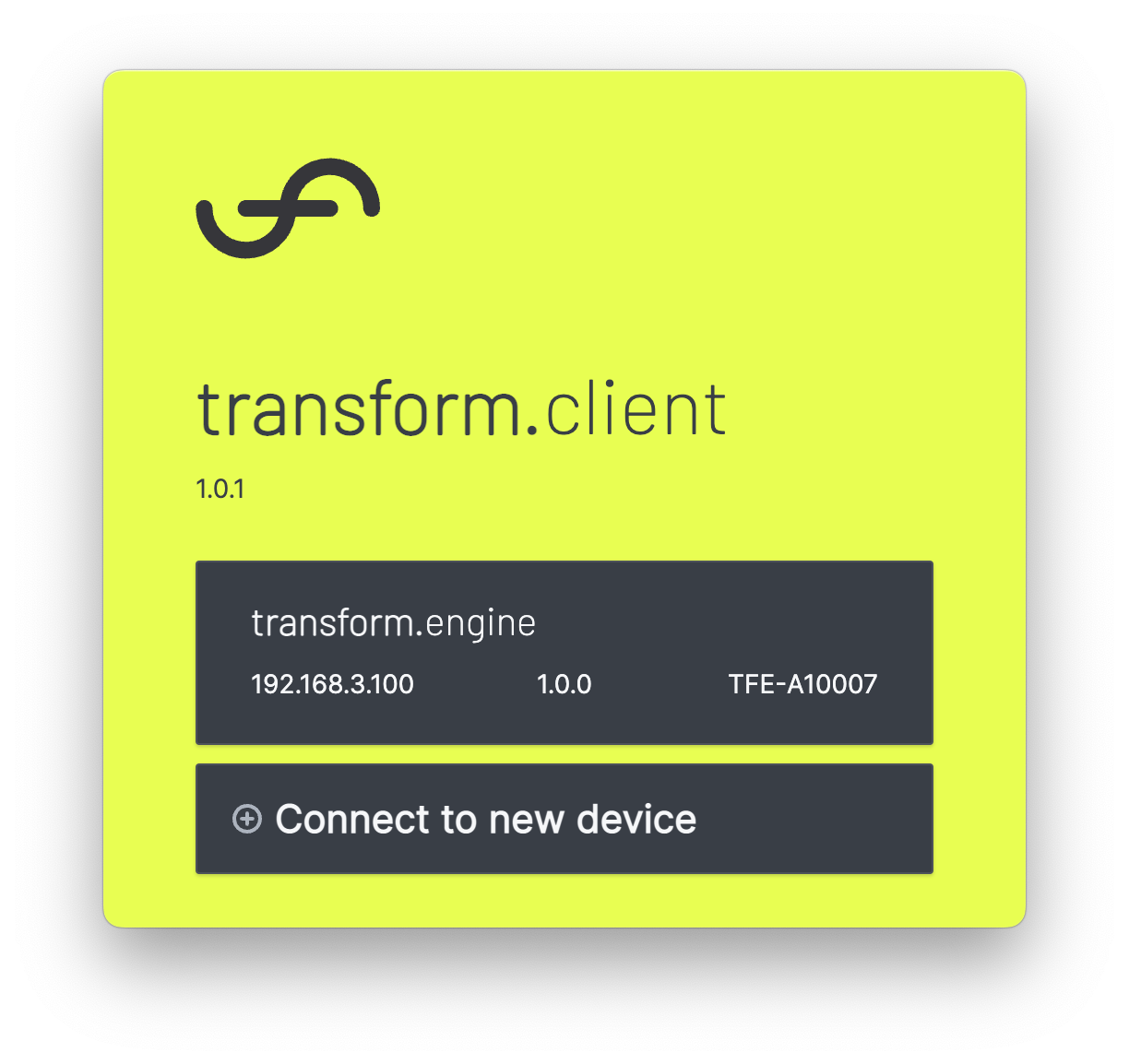
Select transform.engine when it appears. This connection must continue to use the Control port while HYPERPORT is active.
Here's Elliot giving you a quick introduction to transform.client:
Software
HYPERPORT requires v1.7.0 or newer on both transform.engine and transform.client. Check both version numbers under System > Support & Software before continuing. An older engine may still accept a connection from a newer client, so being able to connect does not mean that HYPERPORT is available.
If the engine needs updating, follow the upgrade instructions, then restart transform.engine when asked.
The transform.engine software is bundled with transform.client, so no separate engine software download is required. DiGiCo console and interface updates must be obtained separately from DiGiCo support. Check the DiGiCo version compatibility grid before selecting HYPERPORT. If you experience a problem during a transform.engine upgrade, contact support@fourieraudio.com.
Selecting HYPERPORT
-
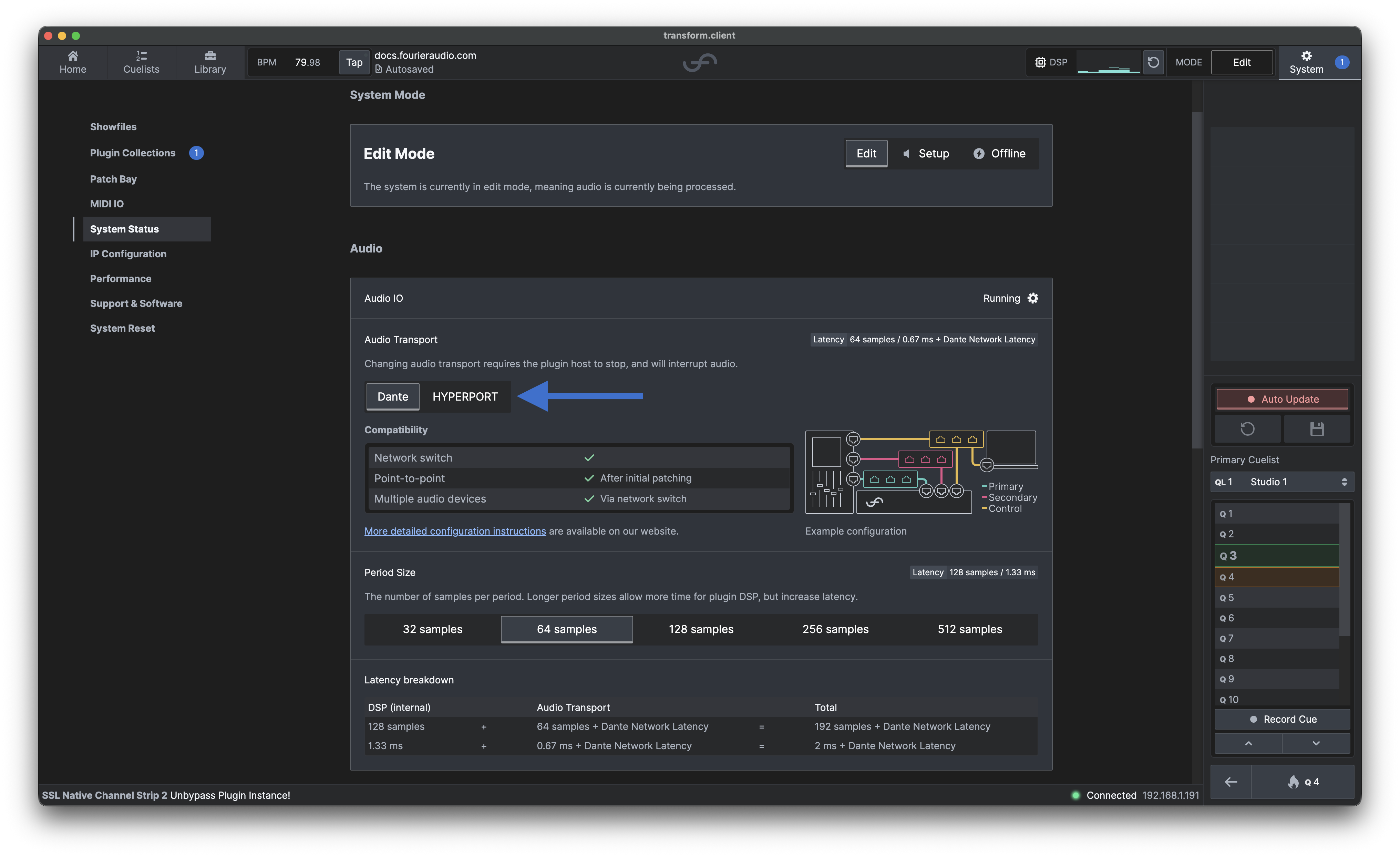
In transform.client, open System and the System Status tab on the side menu.
-
Select HYPERPORT.
-
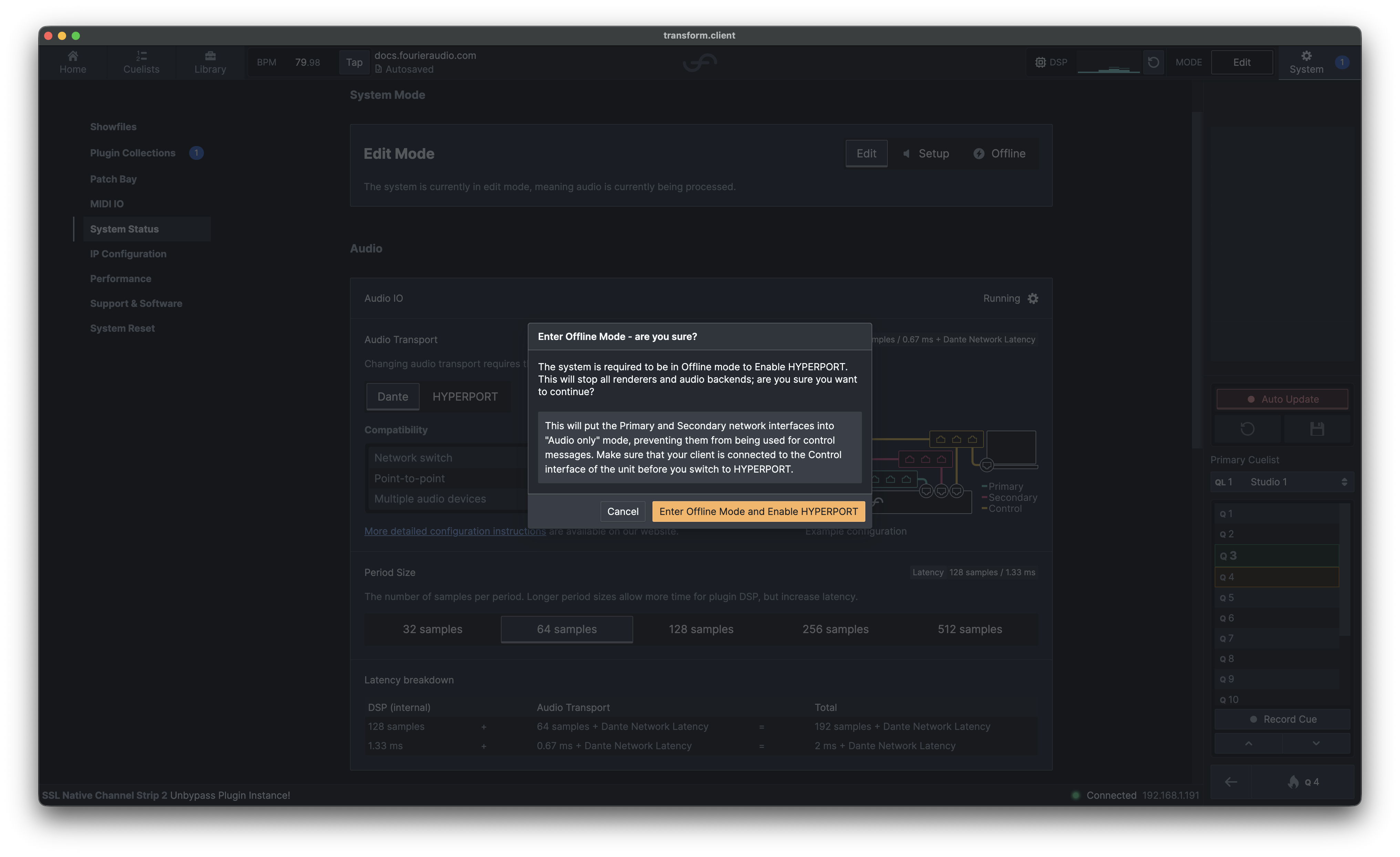
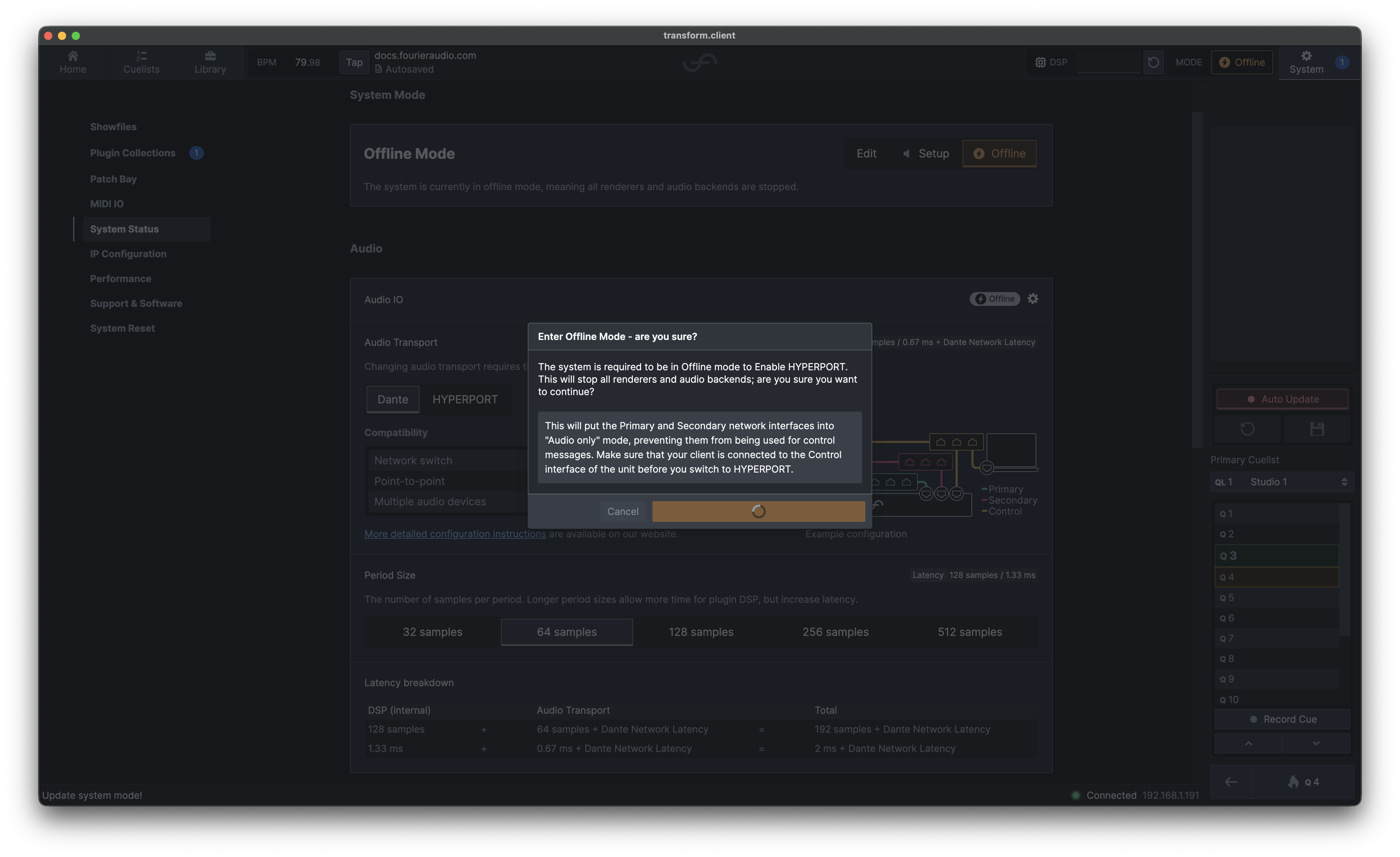
Select Enter Offline Mode and Enable HYPERPORT. Changing the audio transport interrupts audio and requires the plugin host to stop, as does changing the period size. Make sure the client is connected through the Control port before confirming.
-
Wait for the change to complete. The confirmation button displays a spinner while the system changes mode.
-
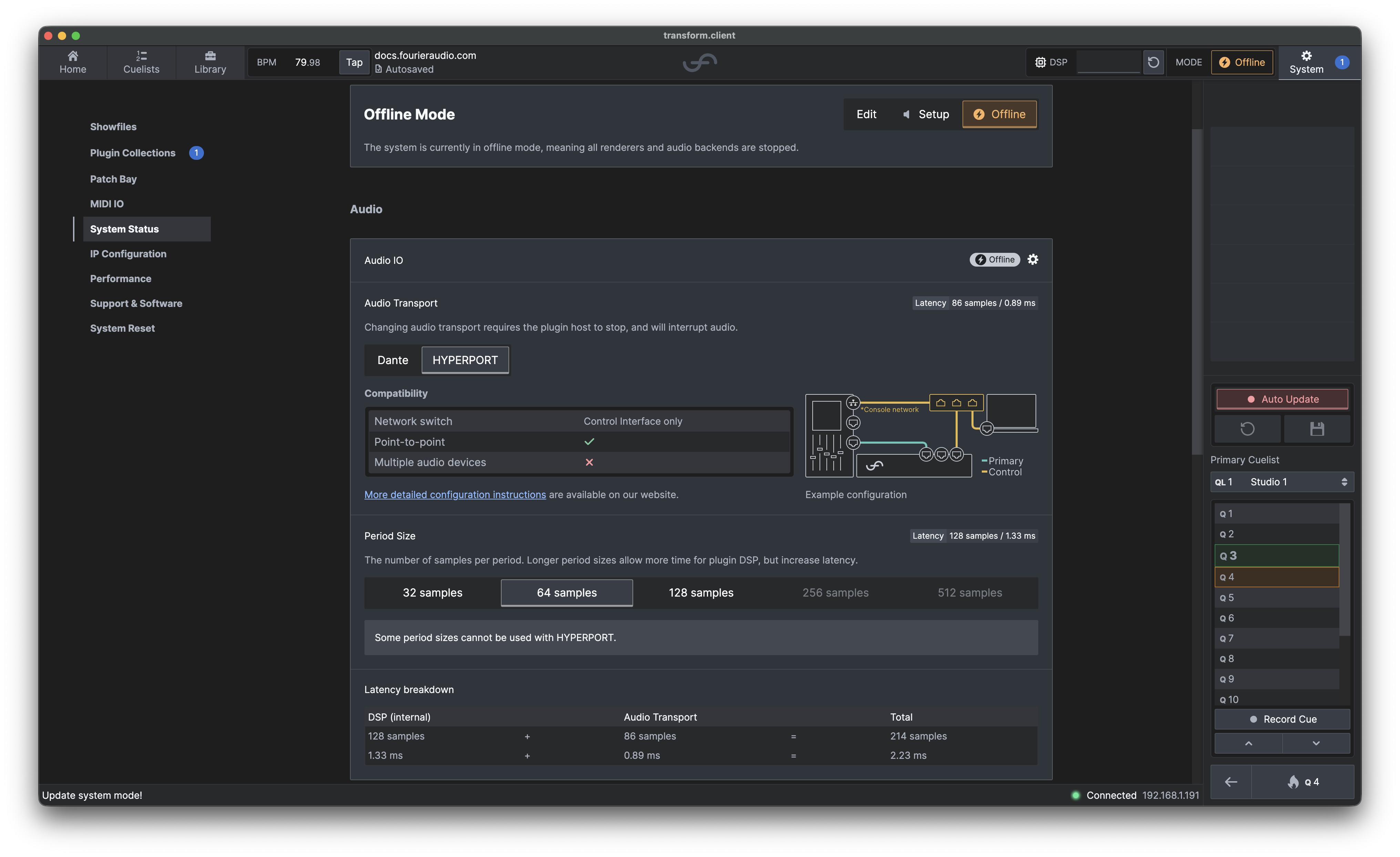
Confirm that HYPERPORT is selected and Audio IO shows Offline. While in Offline Mode, set the period size to 32, 64, or 128 samples. The unsupported 256- and 512-sample period sizes are disabled.
-
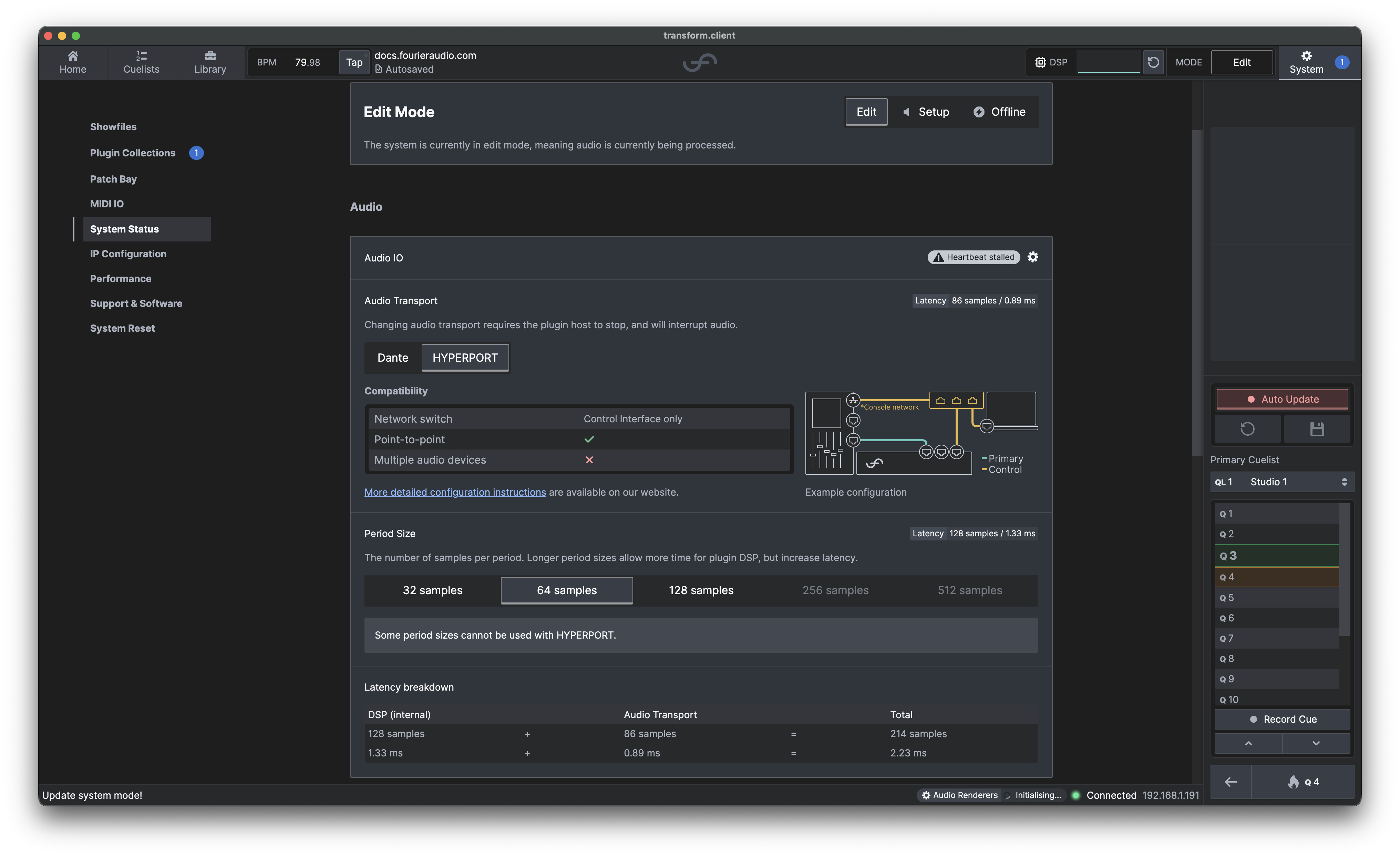
Switch back to Edit Mode. During startup, Audio IO may temporarily show Heartbeat stalled, Disconnected, or Offline while the audio renderers initialise.
-
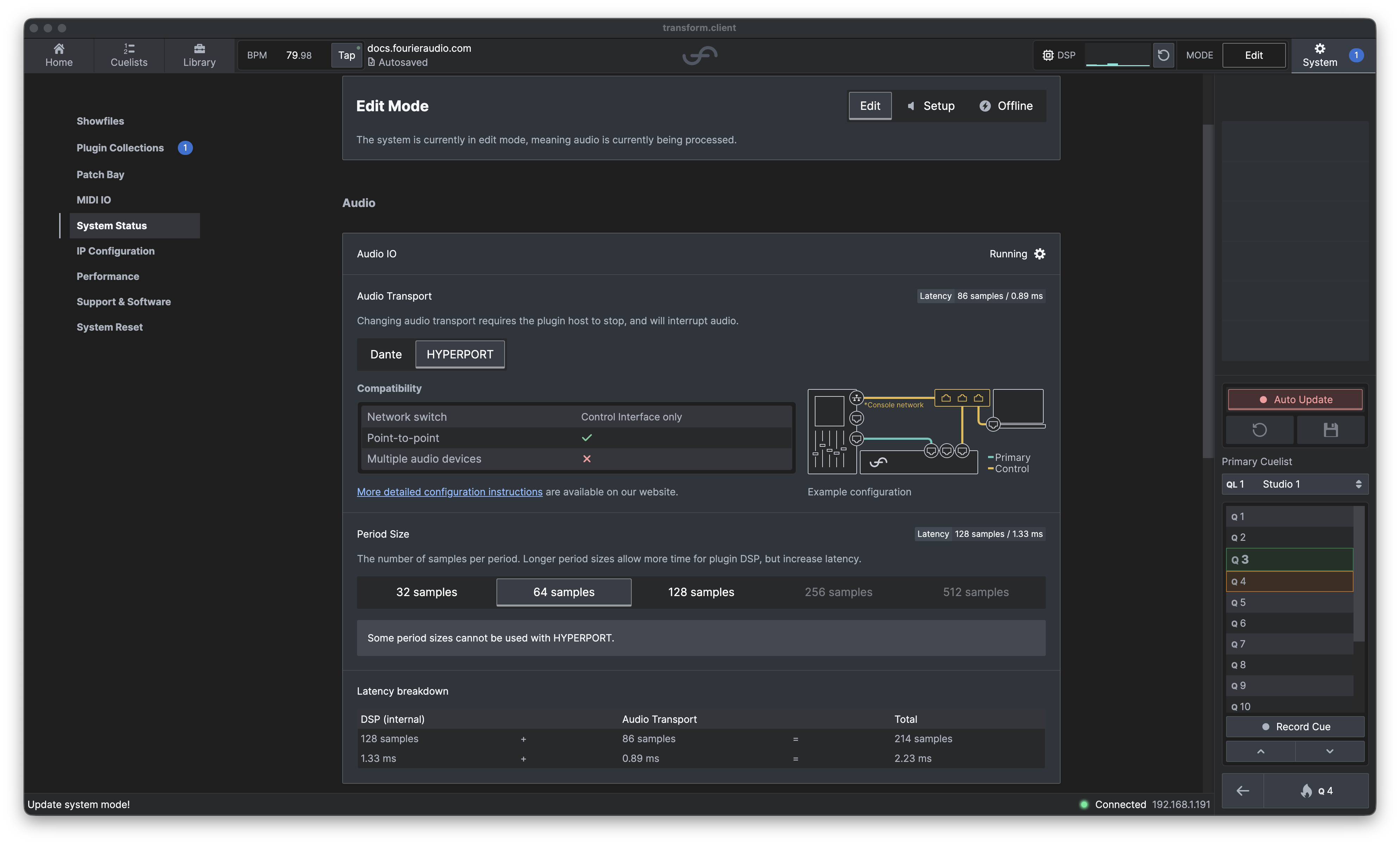
Wait until Audio IO shows Running before testing audio.
Configure routing on the console, then send a test signal to the transform unit. Confirm that it reaches the expected input, returns to the expected console channel, and remains clean and stable.
Installing plugins
Plugins are installed in the Plugin Host, a Windows environment accessed from transform.client:
- Open the Library tab and select Add/Remove Plugins.
- Confirm that you want to stop the audio engine.
- Select Open plugin host.
- Download the Windows plugin installer on your computer and copy it to a USB stick.
- Connect the USB stick to transform.engine and run the installer in the Plugin Host.
- When choosing plugin formats, install VST3 and deselect AAX and VST.
- Once installation is complete, select Close and rescan plugins.
- Wait for the scan to complete, then select Finish.
- Select Close to restart the audio engine. Your plugins are now ready to add to chains.
Here's Elliot talking you through plugin installation:
If HYPERPORT is not working
Confirm that the interface is supported and up to date, the audio connection is direct and uses the Primary port, transform.client is connected through the Control port, and the selected period size is supported. Then have a look at HYPERPORT troubleshooting.