Plugin View
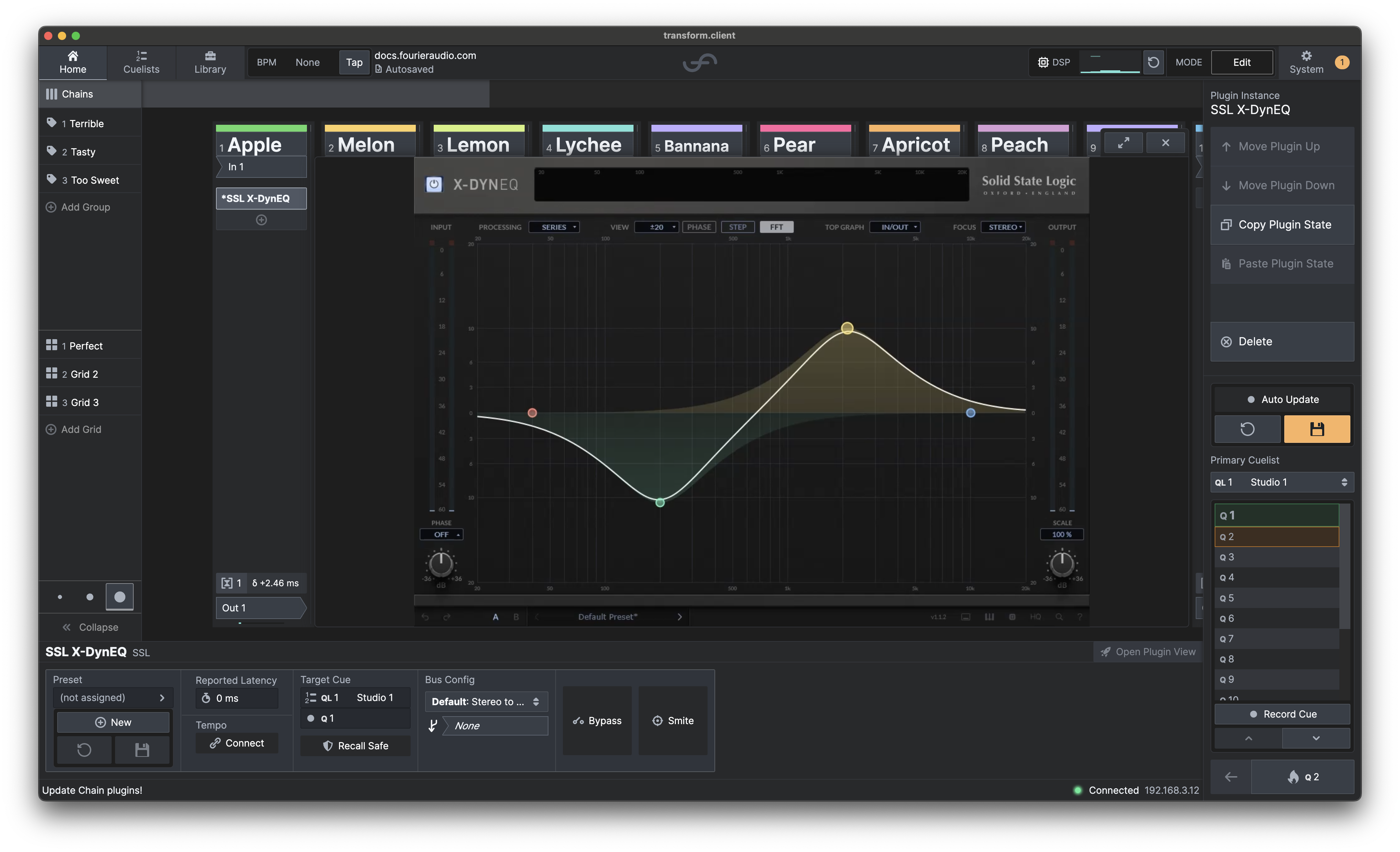
When you select a plugin by either double-clicking on it, or selecting it and clicking 'Open Plugin View', the plugin UI will open for you to work your magic! Plugin status is represented in the top bar of the plugin view. This includes:
- Smite
- Bypass
- Side Chain
- Plugin Instance Recall Safe
- Tempo Connect
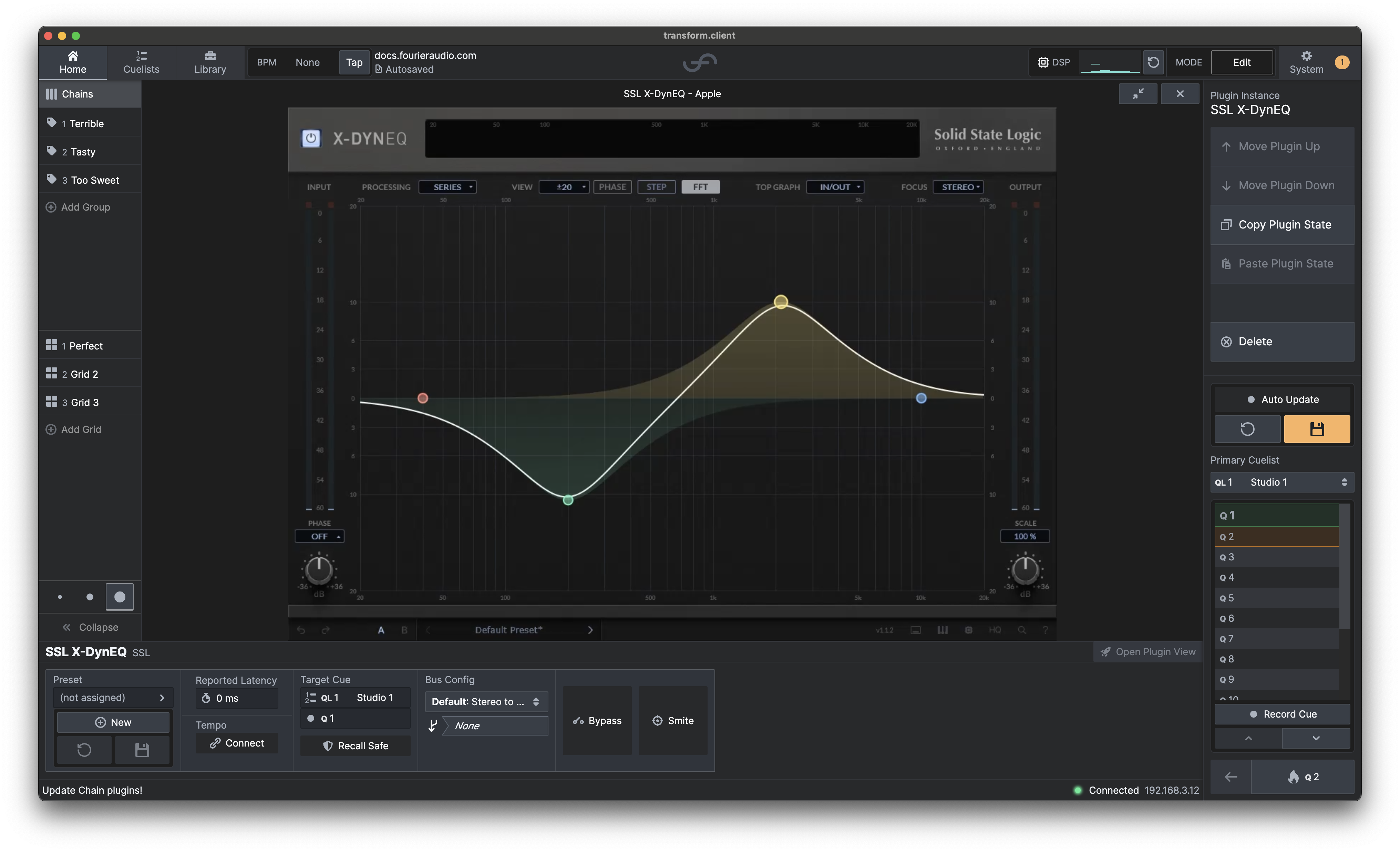
It is also possible to expand the Plugin View by selecting the Maximise button in the top right of the Plugin View:
Typing & Modifier Keys
Text entry works directly inside Plugin View. Click into a text field in the plugin UI and type as you would in a DAW; common modifier keys (Ctrl/Cmd, Shift, Alt/Option) are passed through, so shortcuts and capitalisation behave as expected.
Errors
If something goes wrong when viewing a plugin, you might see one of the following errors:
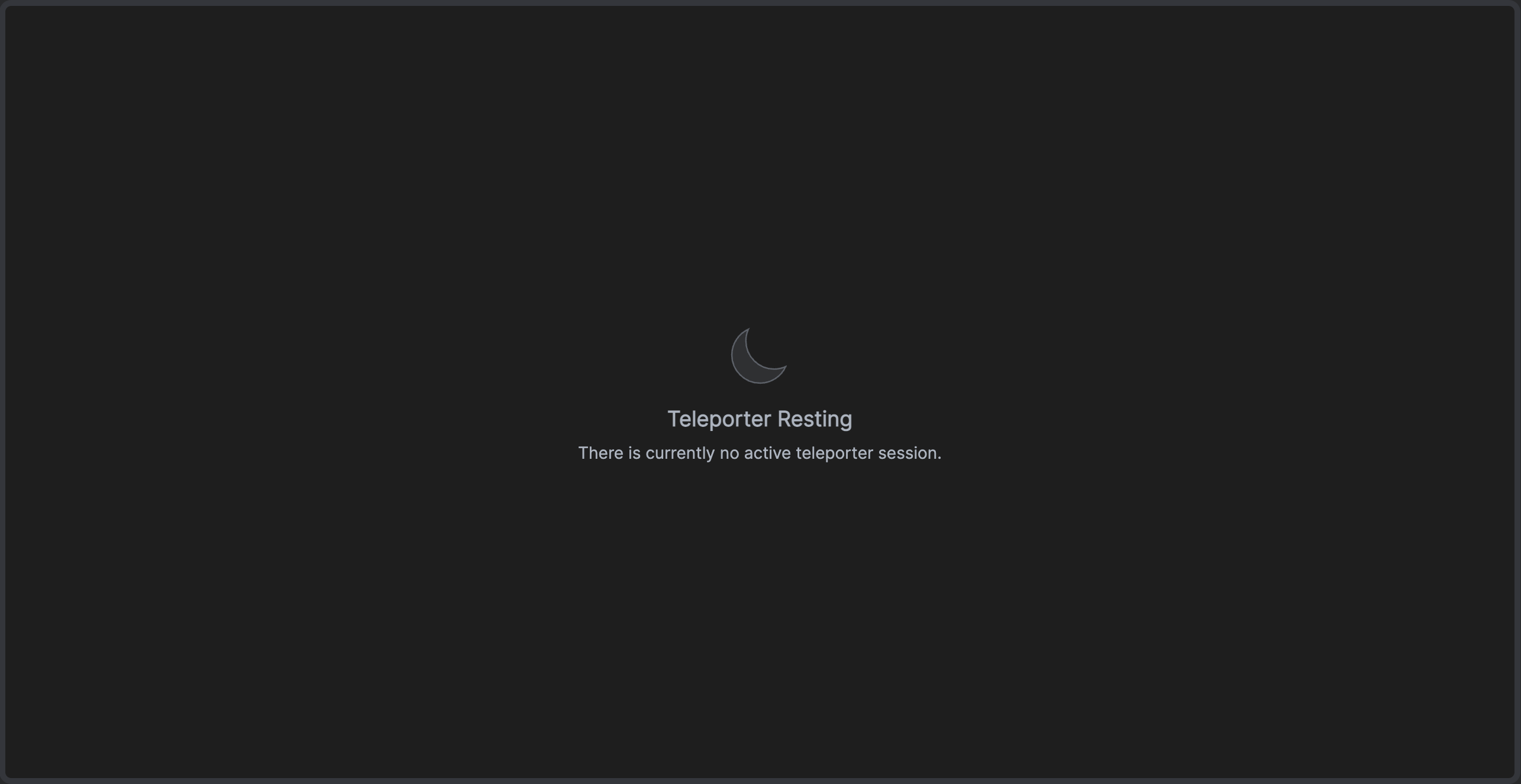
Teleporter Resting
Unfortunately, the teleporter session was working successfully but the network connection was lost. Simply close the plugin view and reopen it to start a new teleporter session.
Teleporter Session Failed
In the unlikely case that this occurs, it means the system has requested the plugin UI view from the plugin, but received nothing back; or as we call it, the plugin 'kicked the bucket'. We'd recommend shutting the plugin view window and opening it again.