System Status
Clicking on System Status, will give you useful under-the-hood information, to check your engine is running on all cylinders!
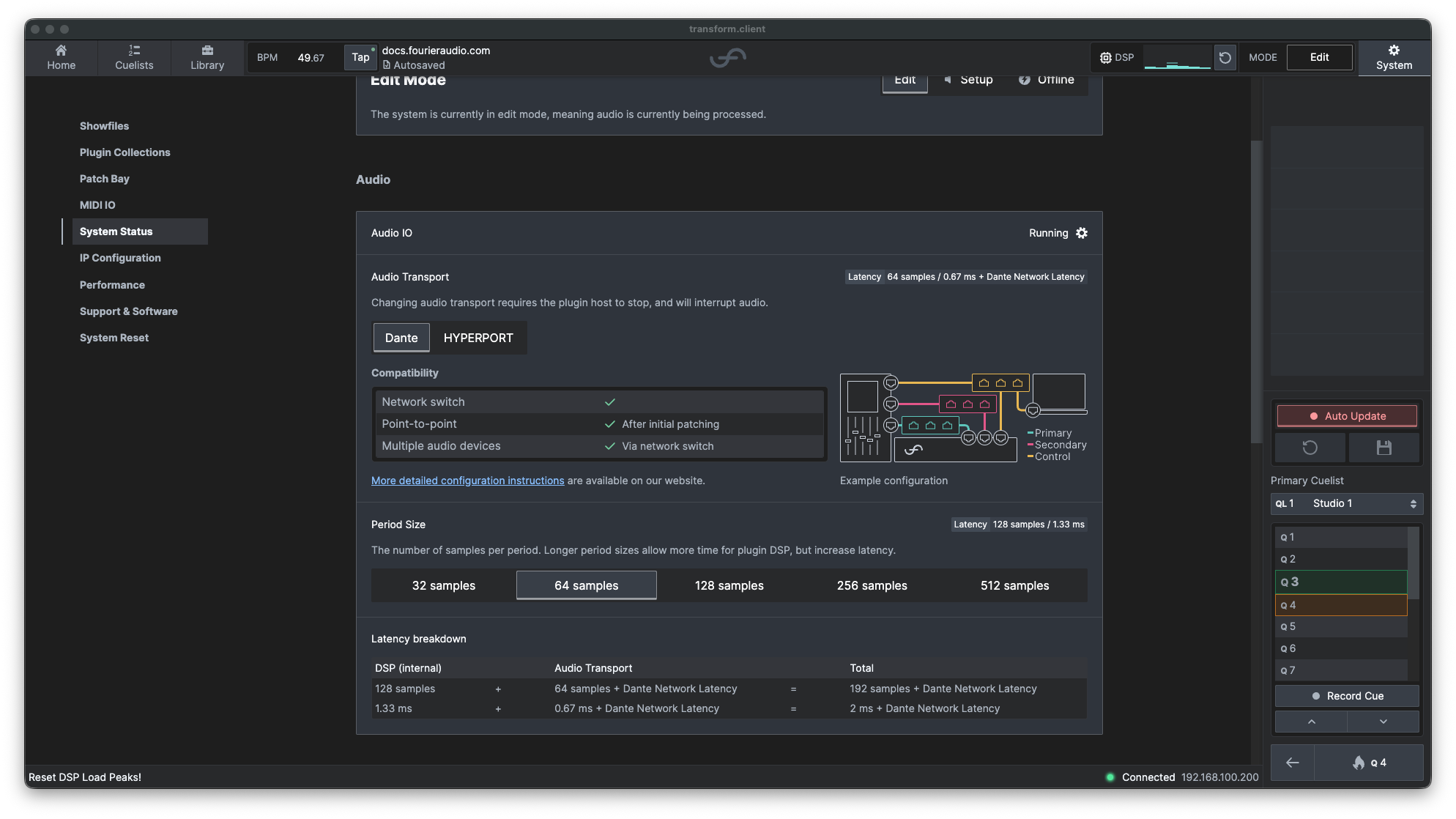
System Mode
- Edit Mode - Audio is running through the audio engine.
- Setup Mode - This allows you to stop the audio engine and configure plugins without passing audio.
- Offline Mode - In this state, the audio pipeline is taken down completely, with the exception of key services (enabling you to remain connected).
It takes approximately 60 seconds for the system to exit offline mode; this is to allow time for the Windows environment to be initialised.
Audio
Audio IO
The Audio IO status shows the current state of your audio pipeline. There are several states you may encounter:
| State | Icon | Description |
|---|---|---|
| Running |  | Audio is flowing normally. The cog spins to indicate active processing. |
| Disconnected | 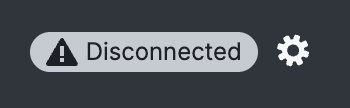 | No connection to primary or secondary ports. Check network connection and connected device power. |
| Muted |  | Indicates the system is in Setup Mode. Audio pipeline is active but outputs are muted and plugins are not loaded. |
| Offline |  | Indicates the system is in Offline Mode; audio engine completely stopped. |
| Heartbeat Stalled | 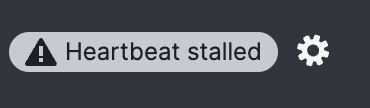 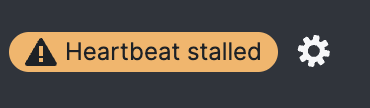 | transform.client is not receiving a heartbeat from the audio engine. This could be because of a network connection issue between transform.client and the engine, or because the audio pipeline exists but processing has stalled. Grey - The lack of heartbeat is expected because the audio renderer is starting up, standby! Orange - The lack of heartbeat is unexpected; often due to network issues. If no audio is being received, try to Offline Mode and then back to Edit Mode. |
Audio Transport
Use the Audio Transport control to select Dante or HYPERPORT. Changing transport stops the plugin host and interrupts audio, so the transform.engine must be in Offline Mode before you make a change.
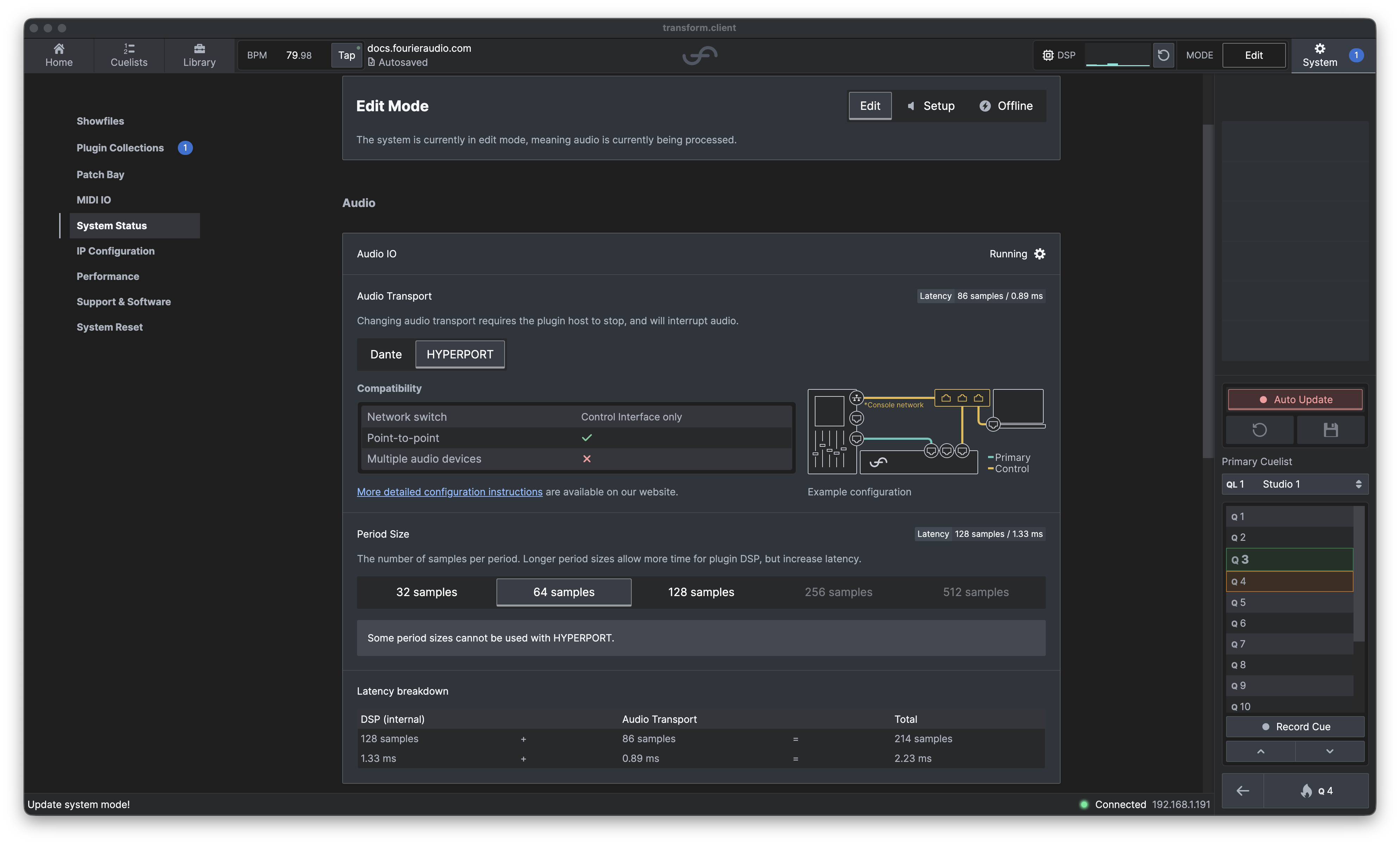
The latency badge beside Audio Transport shows the transport's contribution to the round trip in both samples and milliseconds. This value changes with the selected transport, sample rate and period size.
Period Size
The period size controls how many samples are processed per block. The latency badge beside Period Size shows the internal DSP contribution in samples and milliseconds.
Shorter periods = lower latency, but less time for plugin DSP.
Larger periods = higher latency, but more plugin processing capacity.
| Transport | Available Period Sizes |
|---|---|
| Dante | 32, 64, 128, 256, 512 samples |
| HYPERPORT | 32, 64, 128 samples |
Period sizes that are unavailable for the selected transport are disabled in the interface. In particular, 256- and 512-sample periods cannot be used with HYPERPORT.
transform.engine must be in Offline Mode to reconfigure the audio pipeline. You will be prompted to change system mode if you are not in Offline Mode already when adjusting the period size.
After changing the period size, switch back to Edit Mode to resume audio.
Latency Breakdown
The Latency Breakdown panel shows how the current DSP and audio-transport latencies combine to produce the total round-trip latency through transform.engine. Each value is displayed in both samples and milliseconds.
This makes it easy to compare processing headroom vs. latency impact when adjusting period size or transport type.
The roundtrip latency section describes an overview of how to calculate the round-trip latency when using transform.engine as an insert. Here, we go into more detail about how the device internal latency is calculated.
The displayed total is composed of the DSP pipeline latency from the transform audio engine plus the latency of the selected audio transport. These figures describe latency from the perspective of transform.engine and do not include any additional buffering or routing latency inside the console or its interface.
Lets break down some of these numbers. To calculate the device internal latency, you only need three inputs:
- Sample rate (Hz)
- Period size (samples)
- Audio transport latency (milliseconds)
Step 1: Time per sample = 1 / sample rate
- 96 kHz: 1/96000 = 0.000010416 s
- 48 kHz: 1/48000 = 0.000020833 s
Step 2: Latency per period = time per sample × period size
- 96 kHz, 64 samples: 0.000010416 × 64 ≈ 0.0006667 s ≈ 0.6667 ms
- 48 kHz, 64 samples: 0.000020833 × 64 ≈ 0.001333 s ≈ 1.333 ms
Step 3: DSP pipeline latency = input period + output period = period latency × 2
Step 4: Total round-trip = internal latency + transport latency
For Dante running on transform.engine, the transport latency is 1 period latency plus the flow latency for each direction (where the flow latency is the highest device latency of the two devices participating in the flow, configurable down to 1 ms).
Worked example:
| Configuration | Period latency | DSP Pipeline Latency | Round-trip Transport Latency | Total round-trip latency |
|---|---|---|---|---|
| Dante, 96 kHz, 32 samples | 0.333 ms | 0.667 ms | 2.33ms | 3 ms |
For HYPERPORT at 48 kHz with a 64-sample period, the panel shows the following breakdown:
| DSP (internal) | Audio Transport | Total |
|---|---|---|
| 128 samples / 2.67 ms | 75 samples / 1.56 ms | 203 samples / 4.22 ms |
- NB that the transport latency depends on the selected transport and may vary with period size.
Audio Renderers
The Audio Renderers panel provides the current status of the audio services running on your transform.engine. This view helps to quickly identify that system processes are active and healthy.
The renderer is shown with:
-
An audio renderer status indicator (Online / Offline / Reconfiguring)
-
System service status
-
Network interfaces status (Primary, Secondary, Control)
-
Temperature indicator:
> 90°C - The unit is operating at the upper thermal limit. Continued operation at this temperature may reduce performance. A danger indicator will appear in the status bar.
Why are these ranges so high?
The temperature value shown in this section reflects the highest detected CPU core temperature inside the Audio Renderer, not the ambient internal temperature. This means it may appear higher than expected if you are used to monitoring external temperatures. If you are experiencing constantly high temperatures, see Reducing Temperature.
System Time
Displays the connected unit’s internal system time. Time drift can cause iLok licensing failures and, in severe cases, prevent the audio renderer from starting. The Synchronise Unit's System Time button allows the unit to be aligned with UTC.

Synchronisation can only be performed when transform.client is connected to the internet.
If the unit’s system time is incorrect, a warning will appear:

Components
The Components section provides a breakdown of key system modules, their current operational state, and their version numbers.